How do I get printable grid paper in the square size I need?
A4 paper. Squares are 1 cm.
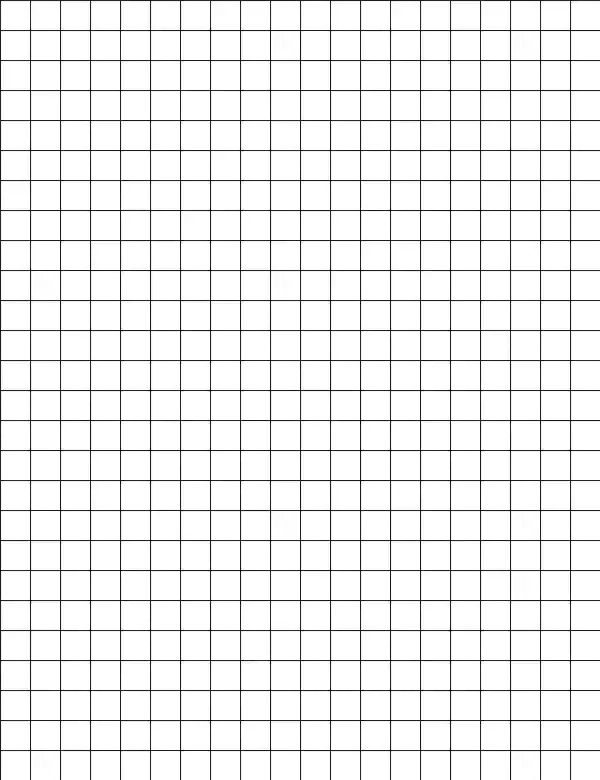
To get printable grid paper in the square size you need, pick Small, Medium or Large squares and press Print. Letter sheets come in 1/4, 1/2 and 1 inch squares, and A4 sheets in 5 mm, 1 cm and 2 cm squares. The page picks the paper size from your browser's region, and you can switch it. It is free and needs no account.
Plain square grid paper suits math homework, sketching, floor plans and stitching charts. The smallest square is 1/4 inch on Letter and 5 mm on A4, and the largest is 1 inch or 2 cm.
How to use printable grid paper
Choose a square size
Select Small, Medium or Large. Small gives the finest squares for detailed work, and Large gives roomy squares for big sketches, lettering or classroom use.
Press Print
Press the Print button. The sheet is set up for Letter or A4 from your browser's region. Press the button under the sizes to switch.
Print at actual size
In the print window, choose actual size and turn off any fit-to-page option. This keeps every square at the size listed for your paper.
Check one square
Hold a ruler against a printed square before you start. If it matches the listed size, the sheet is ready for math, sketching or planning.
Sketching, layouts and scale drawings
Designers and hobbyists often use grid paper to keep proportions honest. Start with a rough idea of what one square stands for, for example one foot of a room or one centimeter of a model part. Write that scale in a corner of the sheet so you do not forget it halfway through.
For a room plan, draw the walls first, then doors and windows, then furniture as simple rectangles. Cut small paper rectangles in the same scale and slide them around the sheet before committing to a layout. This is easier than erasing the same sofa five times.
For a garden bed or a shelf, the same method works. Large squares keep the drawing simple. Small squares let you show a plant spacing or a bracket position more exactly.
Math homework, graphs and coordinates
A student plotting a straight line needs squares that are big enough to read points from but small enough to fit the whole axis on one sheet. For a quick sketch of a parabola, Medium squares usually work. For a graph with many points or fractions, Small squares let you place each point more precisely.
Before you start, draw the two axes with a ruler and mark the zero point near the middle of the sheet if negative values are involved. Label every few squares rather than every square, so the numbers stay readable. Pencil is better than pen until the scale is settled.
Geometry works the same way. Triangles, rectangles and reflections are easier to check when each corner sits on a crossing of two lines. Counting squares gives a quick estimate of area before you work out the formula.
Patterns for stitching, beading and pixel art
Cross-stitch, knitting charts, bead patterns and pixel art all treat one square as one stitch, bead or pixel. Plan the design on paper first, filling squares with pencil or colored markers, then follow the sheet as a map while you work.
Small squares suit patterns with fine detail, such as lettering or a portrait. Large squares suit a first attempt, a child’s project or a simple border. Mark the center row and the center column lightly. Starting from the middle keeps a design from drifting to one side.
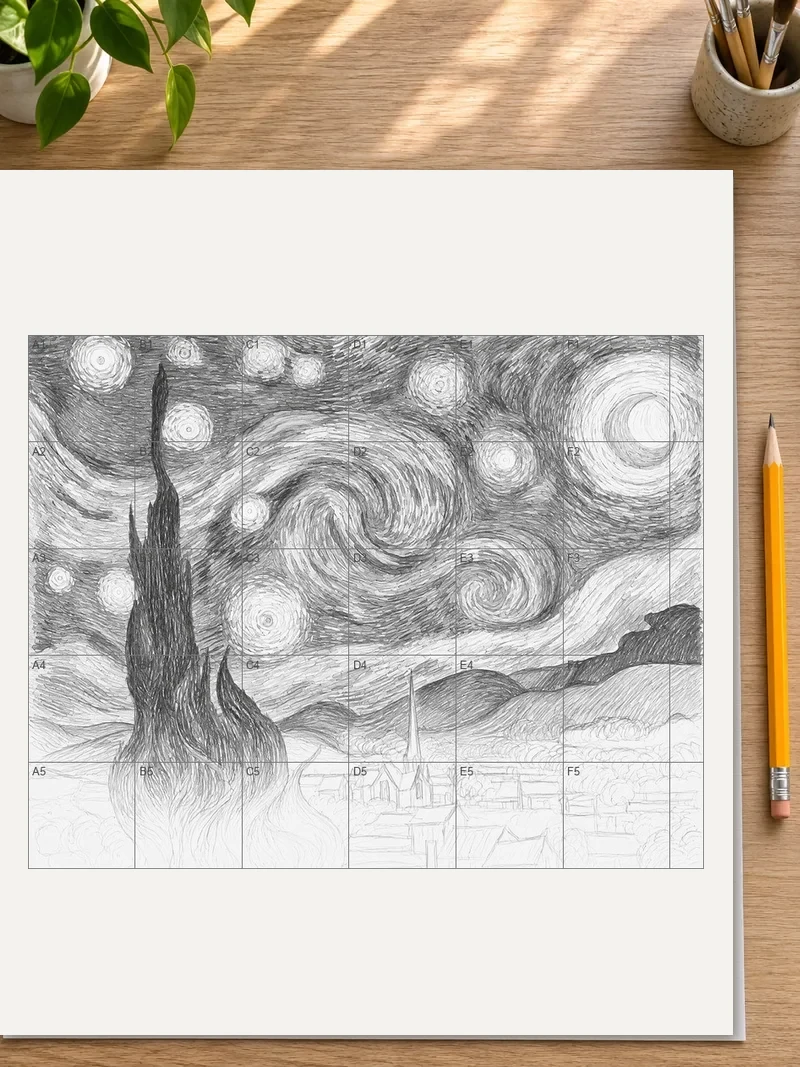
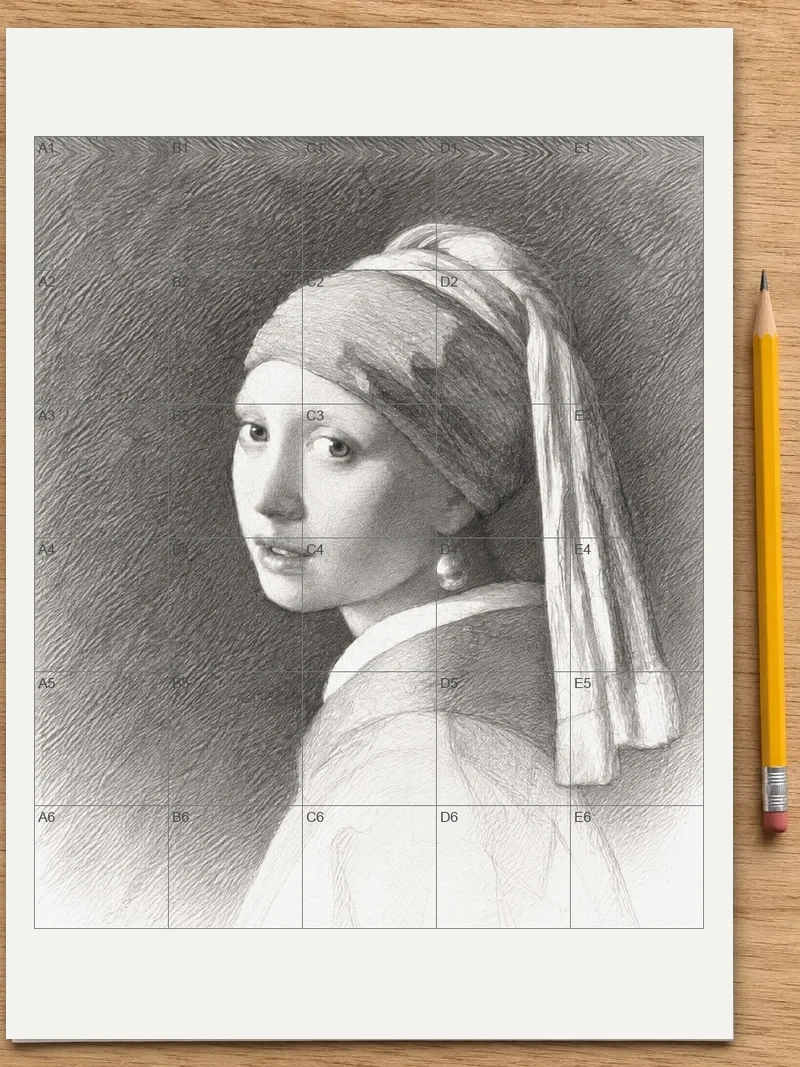
If you want to copy a picture into a pattern, work in blocks. Fill one row at a time and check the row above before moving on. A single miscounted square is much easier to fix on paper than in thread.
Handwriting and calligraphy
Squares give letters a shared height and width. Place the tops of capital letters on one line and the bottoms on another, and the whole word looks even. With Large squares, a learner can see how a curve crosses from one square to the next. With Medium squares, a letter fits into a tidy two-by-two block.
For children learning to write numbers, one digit per square keeps columns lined up when they start adding and subtracting. For adults practicing a new script, copy a few letters across a row, then check each one against the line above.
Classroom and group use
A teacher handing out a coordinate game needs every student to have the same squares. Print one size for the whole class so that everyone can compare answers directly. Large squares work well for younger students and for sheets that will be read from a distance. Small squares suit older students who are drawing graphs with several lines.
Print a few extra sheets for mistakes. Grid paper that is crossed out is hard to read, and a clean copy takes only a moment. If students work in pairs, one sheet can hold the question and the other the answer, which makes marking simple.
Choosing between Small, Medium and Large
Think about how much you will write inside each square and how much area your drawing needs. If you will put a number or a letter in every square, choose Medium or Large. If you only need a guide for straight lines and right angles, Small gives the most structure on the page.
If you are unsure, print Medium first. It is a good middle size for homework, planning and sketching. After a few minutes of use, you will know whether the squares feel too tight or too loose, and you can print the next sheet in another size.
Getting a clean print
Most printers leave a margin, so the grid will stop a little before the edge of the paper. That is normal. Use plain white paper for the clearest lines, and thicker paper if you plan to use markers or watercolor.
When you need a whole stack, print a single sheet first. One look at the first page shows whether the margins suit your project and whether your pen glides over the paper well, before you use up the ink and the stock.
Making a set of sheets
Some projects need more than one sheet. A long graph can be drawn across two sheets placed side by side, with the lines matched at the join. A floor plan can be drawn on several sheets and taped together. Print all of them in the same square size, trim the white margin on the sides that meet, then line up the squares before you tape them.
Keep unused sheets flat in a folder so they do not curl or crease. A folded sheet leaves lines that can be mistaken for part of the drawing.
FAQ
Can I print grid paper without creating an account?
Yes. Open the page, choose a square size and print. There is no sign-up, no app to install and no watermark on the sheet, and any browser on a phone, tablet or computer will do.
Can I set the exact size of each square, like 2 mm or 1/4 inch?
You choose from three set sizes. On Letter paper they are 1/4 inch, 1/2 inch and 1 inch. On A4 paper they are 5 mm, 1 cm and 2 cm. Pick the one closest to the spacing your assignment or project calls for.
Which paper sizes can I print on?
Letter and A4. The page picks one from your browser's region, and a button under the sizes switches to the other. Letter squares measure 1/4, 1/2 or 1 inch; A4 squares measure 5 mm, 1 cm or 2 cm.
Is this grid paper good for algebra and geometry homework?
Yes. It is a plain square grid, which suits plotting coordinates, drawing graphs, measuring shapes and laying out geometry constructions. Small squares fit detailed graphs, and Large squares make shapes easy to read from across a table.
Does the grid paper cost anything?
No. Printing the sheet is free, and nothing is added to the page besides the grid. You can print as many sheets as you need, in any of the three square sizes.
Can I print a grid over my own photo instead?
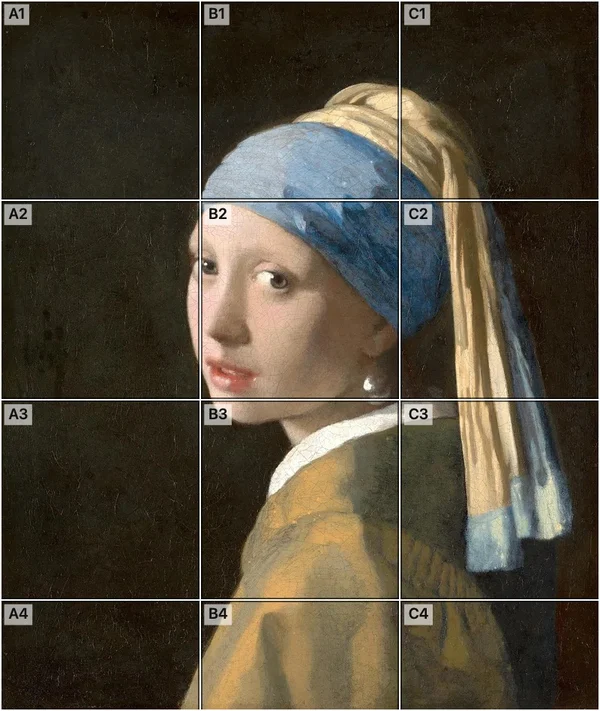
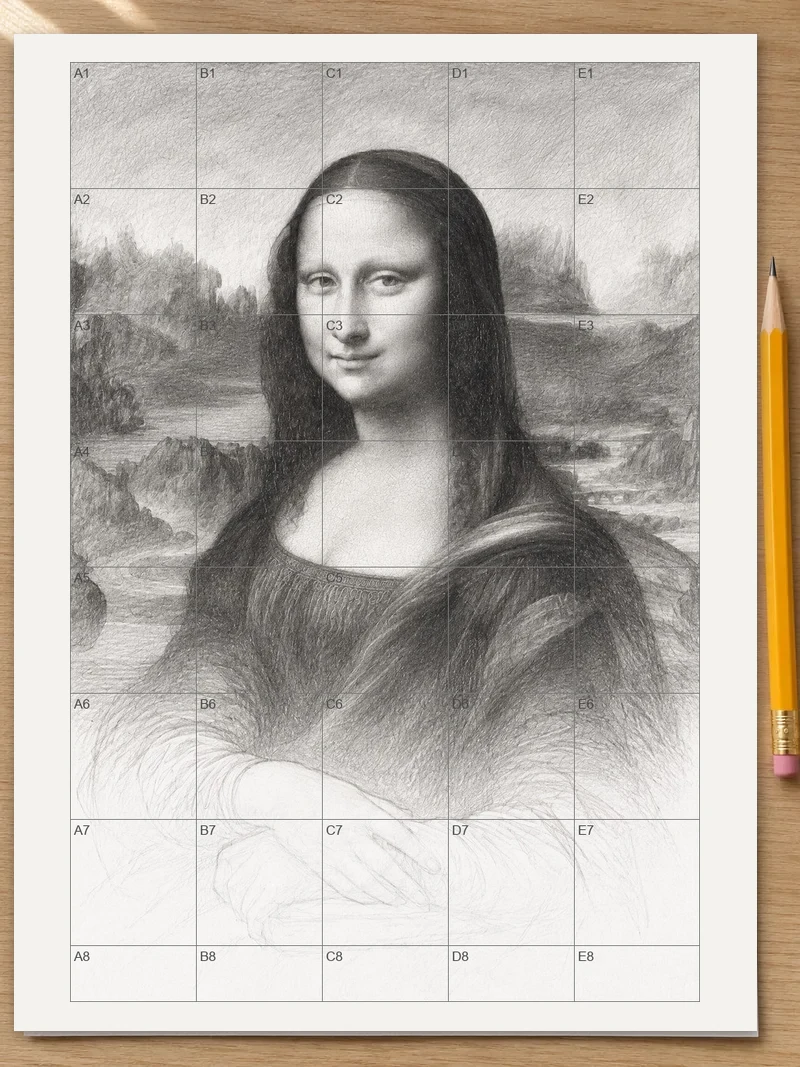
Yes. Go to the grid maker and pick your photo, and numbered squares named like A1 appear over it. Print gives you two sheets at true size: the photo with its grid, then the same grid empty to draw on.
Can I use it on my phone?
Yes. The page works on phones and tablets in the browser. If you are at a computer, scan the code shown on the page and it opens here on your phone, carrying only the page address.
Related tools
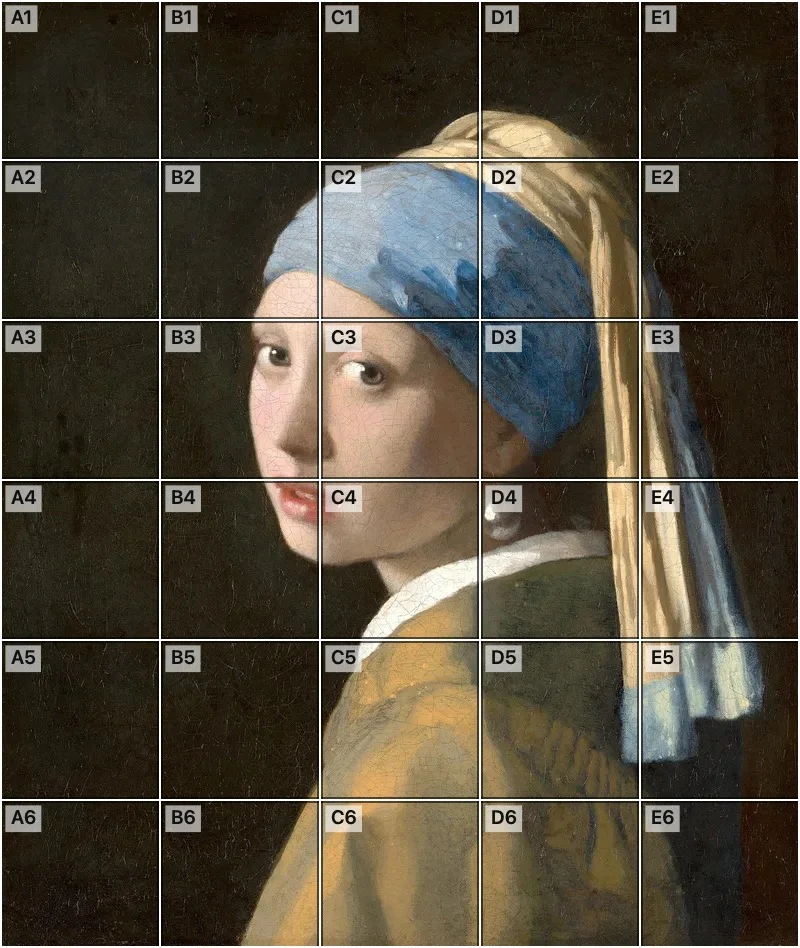 Add grid to photoAdd grid to photo in your browser, with no sign-up and no watermark. Get a numbered grid over your picture, then save it or print it at true size.
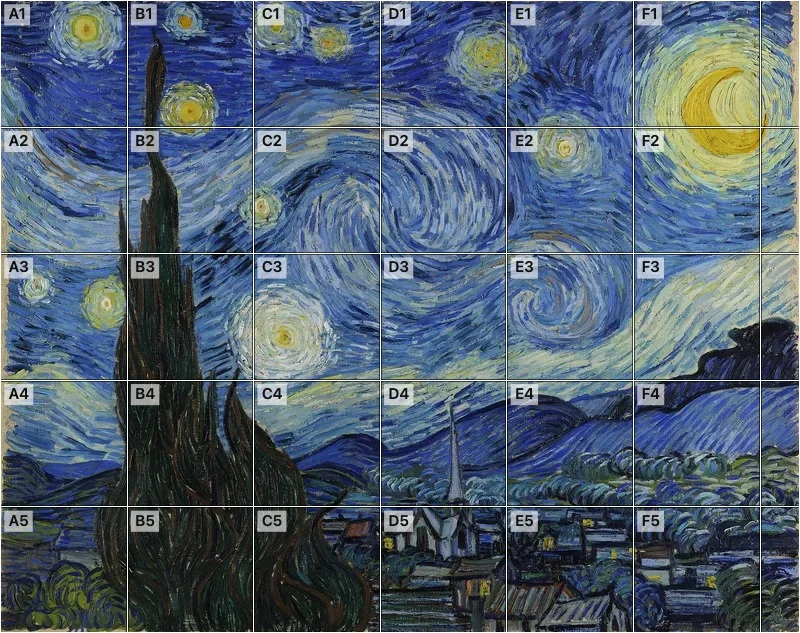 Grid overlayPut a grid overlay on any photo in your browser. Pick Fewer, Medium or More squares, then save the picture or print it at true size.