Free grid maker for drawing
Pick a photo. Get a numbered grid. Copy it square by square.
Your photo stays on your device. No sign-up. No watermark.
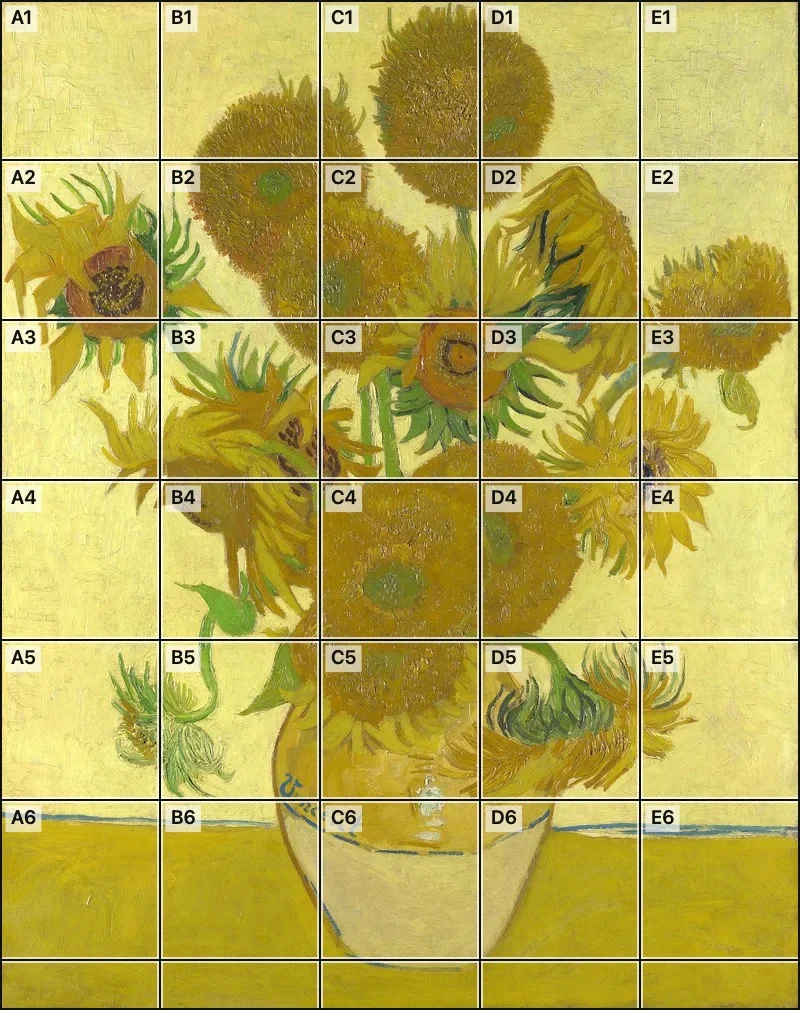
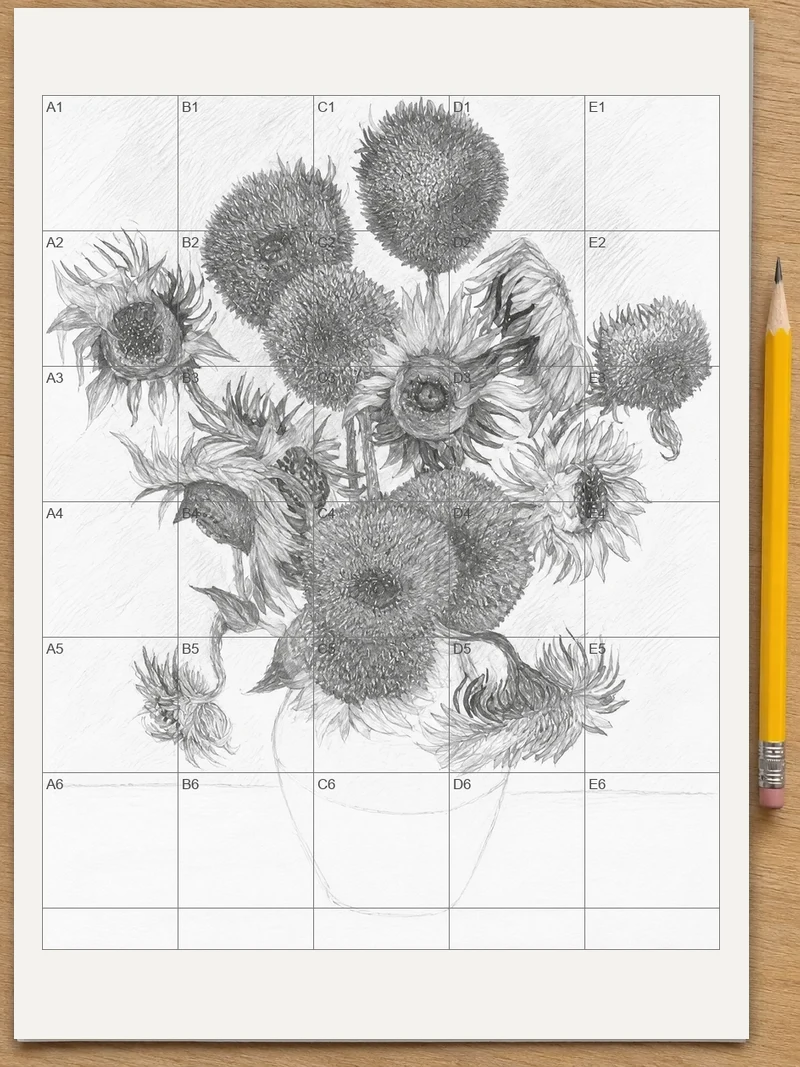
A grid maker puts evenly spaced squares over a photo so you can copy it one square at a time. Pick a photo here and the numbered grid appears at once, free and with no sign-up. Save it or print it, then draw the same squares on your paper.
How to use the grid maker
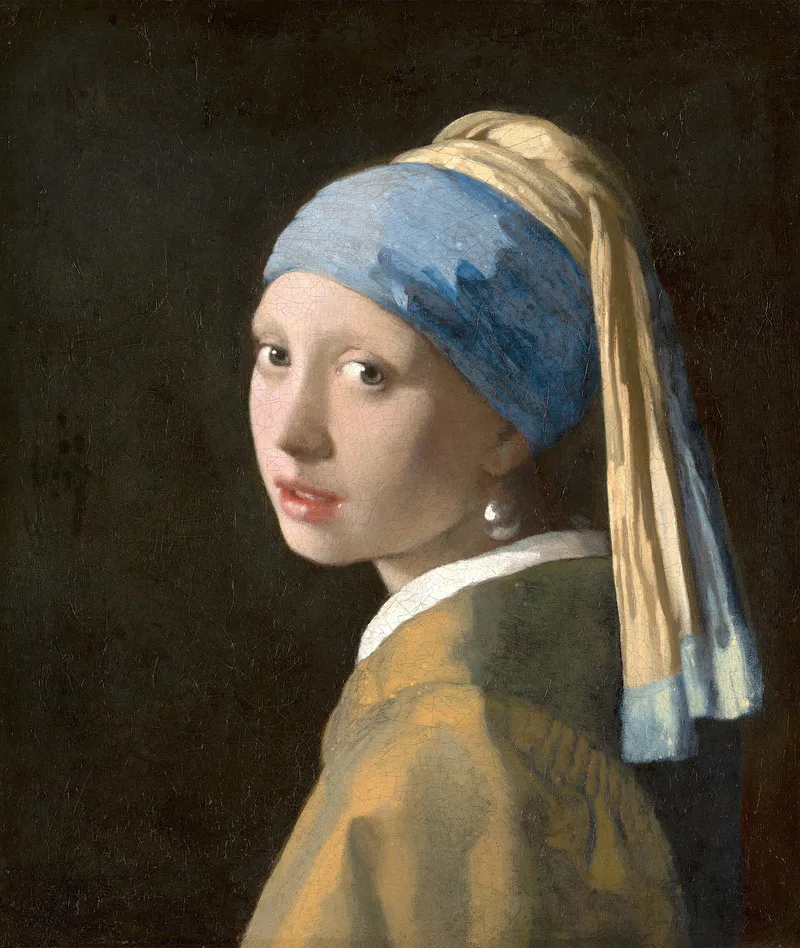
Choose a photo
Press Choose a photo and pick one from your phone or computer. JPG, PNG, WebP and iPhone HEIC photos all open.
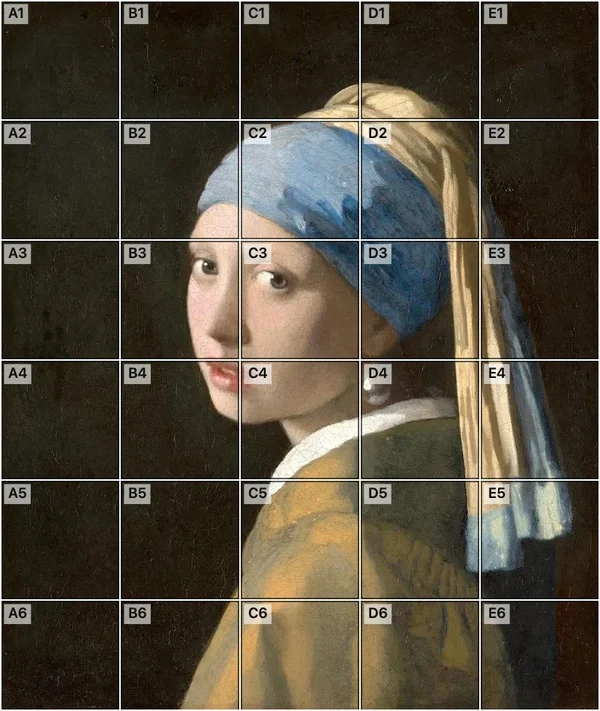
Pick how many squares
The grid appears straight away at Medium. Press Fewer for a simple subject or a young beginner, or More when the photo has small details you want to get right.
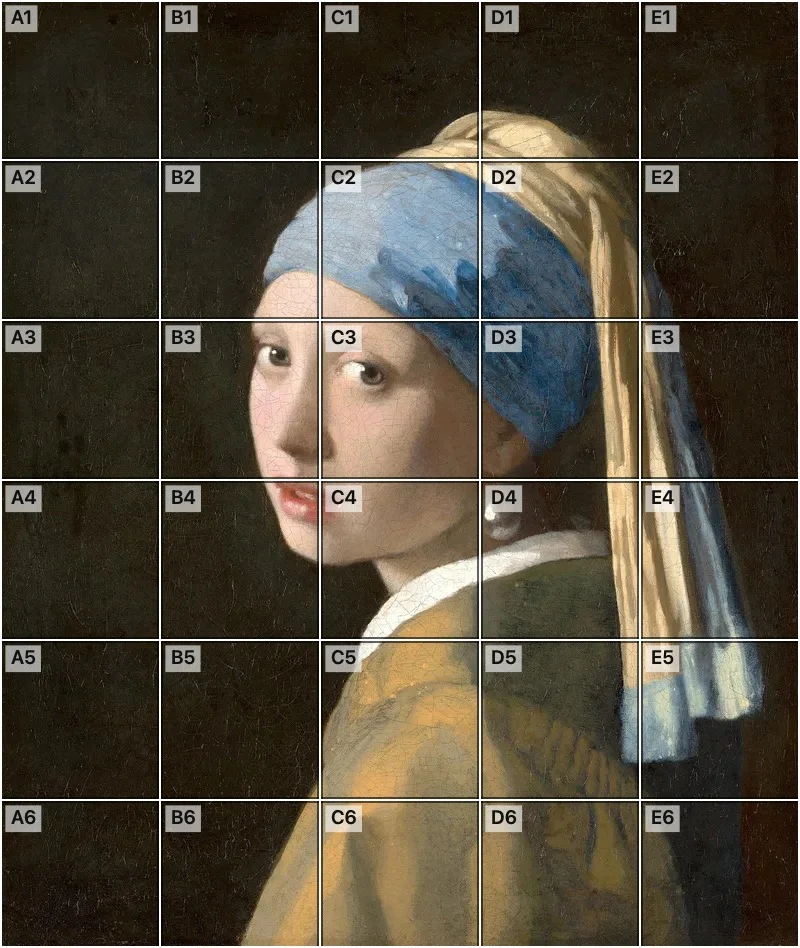
Save it or print it
Press Save to Photos on a phone or Download on a computer. Print gives you two sheets at true size: your photo with the grid, then the same grid empty to draw on. In the print window, choose 100% or actual size.
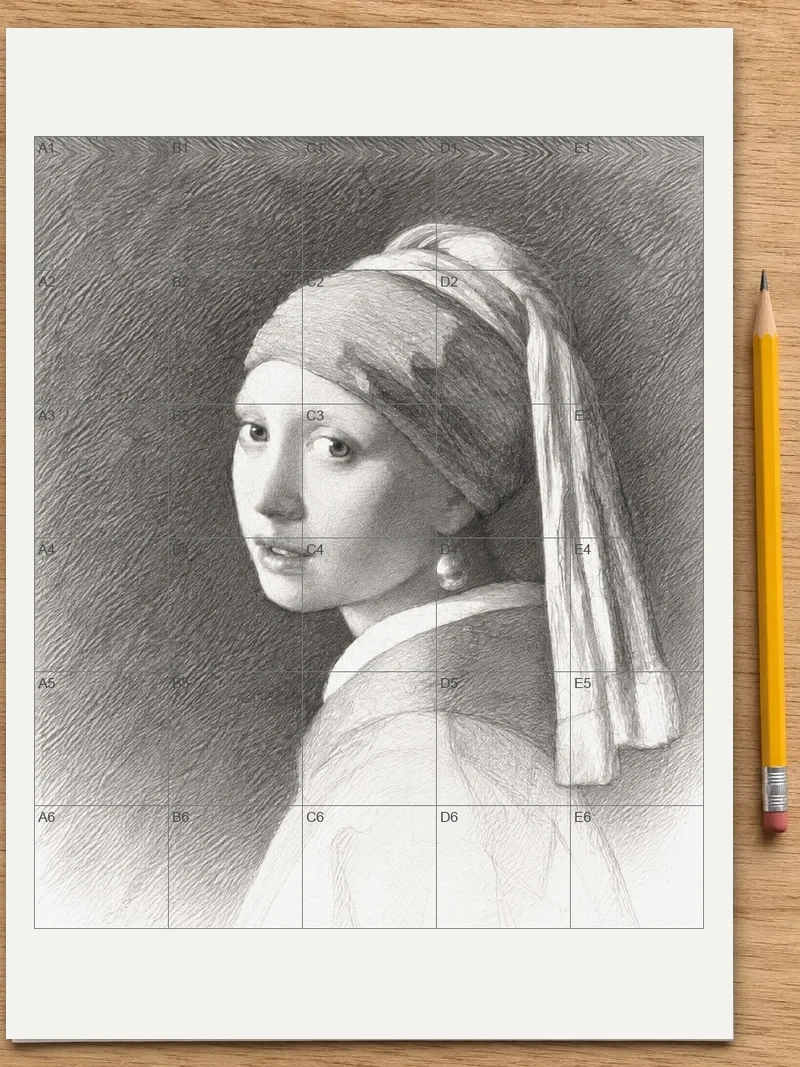
Copy one square at a time
Find square A1 on your photo, then draw only what you see inside it on the matching square of your paper. Move to B1 and carry on until the picture is finished.
Why drawing through a grid works
Most drawings go wrong because the whole picture is hard to judge at once. An eye that looks too big or a horizon that tilts is easy to miss until the page is nearly full. A grid breaks the picture into small squares, and each square holds only a few simple shapes: a curve that enters on the left, a dark patch in the corner, a line that leaves near the bottom. You stop drawing "a dog" and start drawing what is actually there, so the proportions take care of themselves.
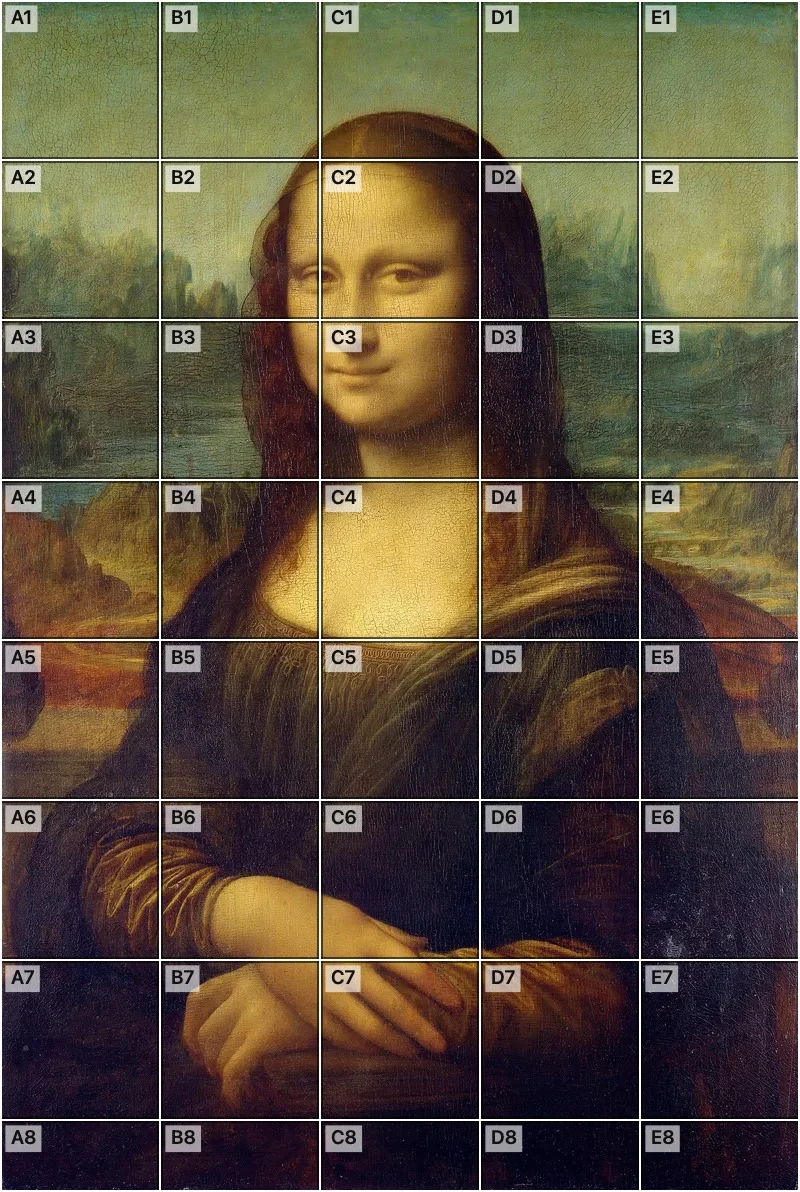
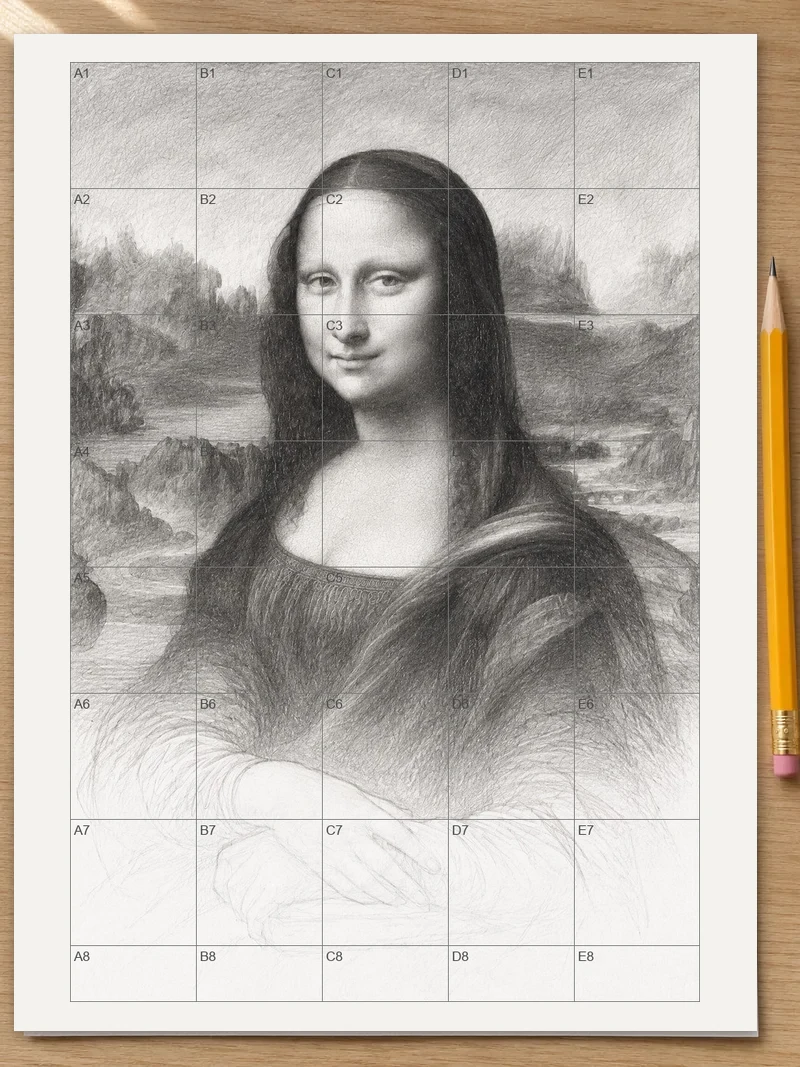
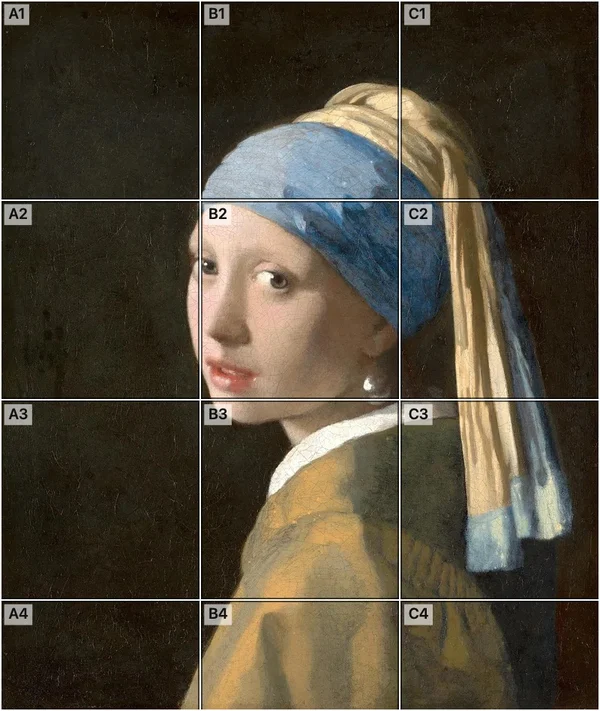
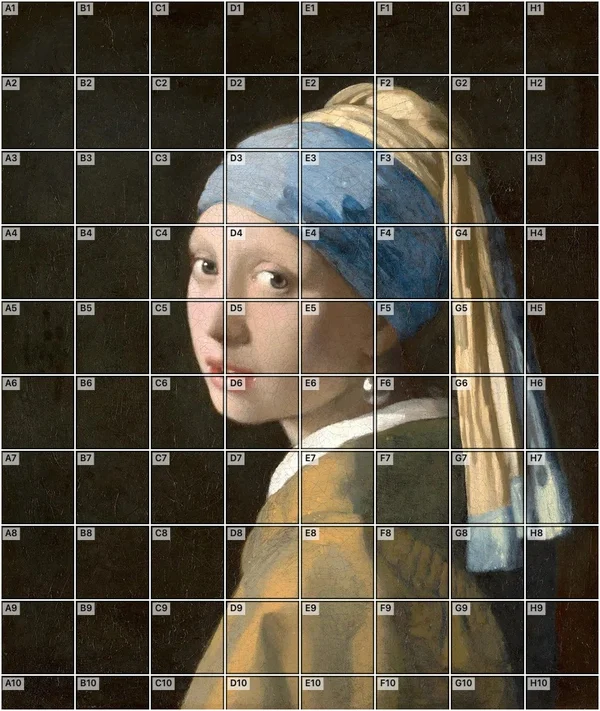
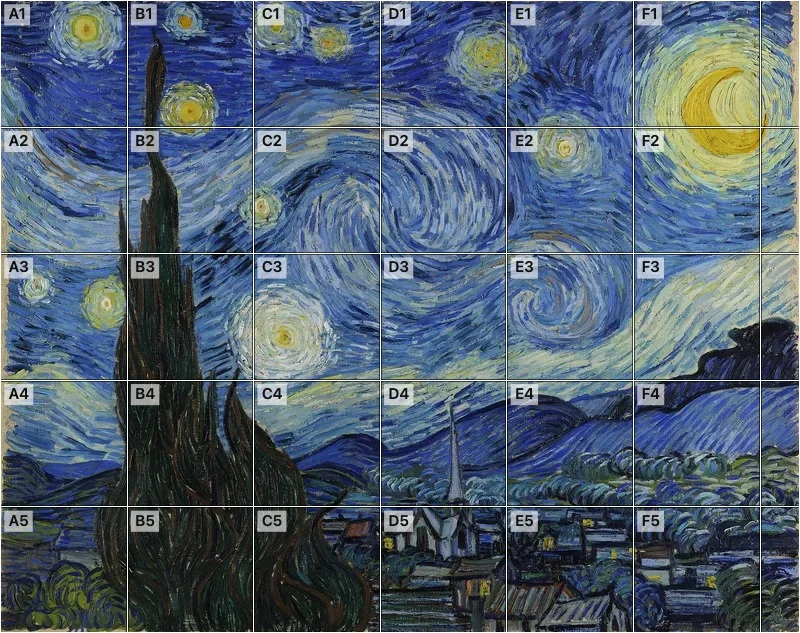
A painting with its grid, and a sample drawing part way through.
Who uses a grid maker
Students and art teachers
Grid drawing is a common classroom exercise because every student can succeed with it, whatever their confidence. A teacher can run the same photo through this tool, print the two sheets and hand them out. Students find a square by its name, such as C4, so a teacher can point at a problem without touching the drawing: "look again at D2". Fewer squares suit younger classes. More squares suit older students who are ready for detail.
Beginners learning to draw
If your drawings never look like the photo, a grid is the quickest way to see what you have been getting wrong. Start with Fewer squares and a simple subject such as a piece of fruit or a pet sitting still. After a few drawings you will start to notice angles and spaces without help, which is the skill the grid is really teaching.
Portrait and pet artists
A likeness depends on small distances: the gap between the eyes, the length of the nose, where the mouth sits. Drawing commissions from a client's photo leaves little room for error, so many artists rough out the proportions through a grid and then erase it. Use More squares for a face, and press any square to see it large while you work on that area.
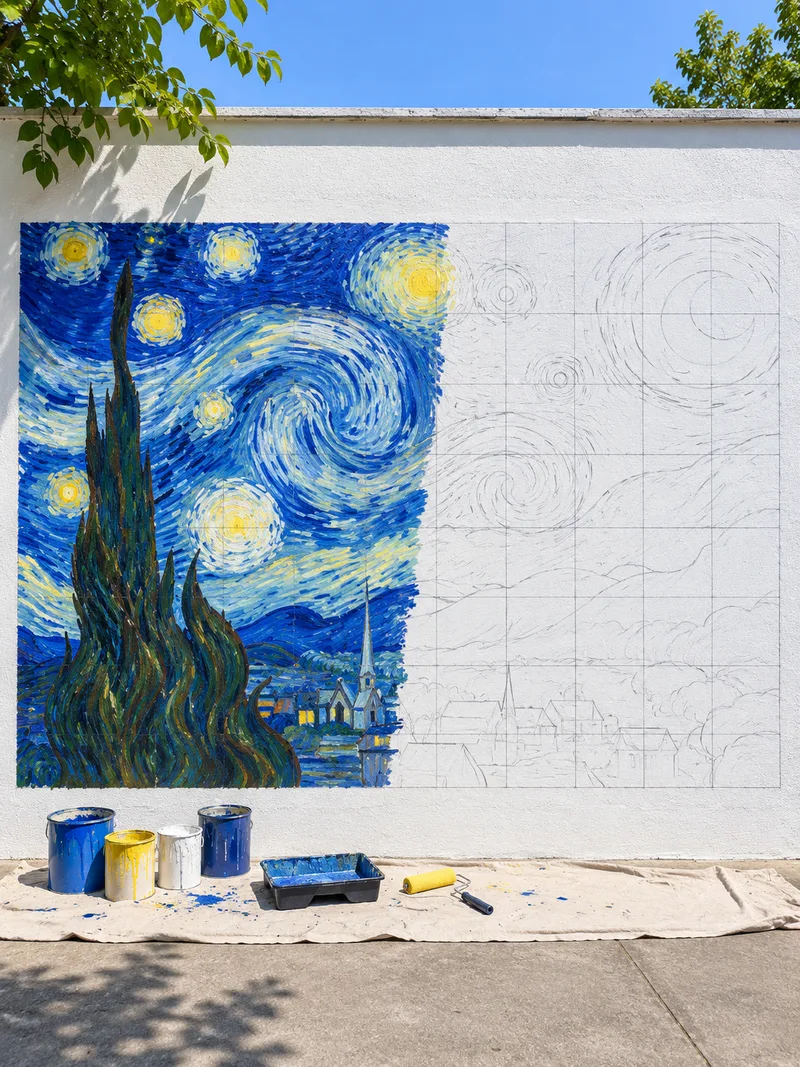
Mural painters and anyone working big
A grid is also how a small picture gets scaled up. Draw the same number of squares on the wall or canvas, only larger, and copy across square by square. The picture keeps its shape whatever size you work at, as long as the squares on your surface stay truly square.
How to choose a photo that draws well
A good reference makes the drawing far easier than extra skill does. Look for a sharp photo with clear light and dark areas, because those edges are what you will be copying. Side light from a window shows form better than a flash, which flattens a face. Crop close to the subject so the squares fall on the part you care about, not on an empty wall: open Adjust grid, then press Crop.
For a first drawing, pick something with simple shapes and a plain background. Busy scenes such as a street or a forest look impressive but give you many squares full of small marks, which is tiring when you are starting out.
Fewer, Medium or More squares?
The three sizes count squares across the short side of your photo: 3 for Fewer, 5 for Medium and 8 for More. Squares are always exactly square, so a long photo simply has more rows.
Use Fewer for a quick sketch, a young child or a large drawing surface. Use Medium for most drawings. Use More for portraits and detailed subjects. If a square still looks crowded, crop the photo so the important part fills more of the grid, and each square will hold less to think about.
Tips for a better result
- Cover the squares you are not working on with a sheet of paper. It stops your brain from filling in what it expects to see.
- Turn the photo and your paper upside down for the hardest squares. Familiar shapes turn into plain lines that are easier to copy.
- Look at where a line crosses the edge of a square. Mark those points first, then join them.
- Compare the darkest part of each square as well as its lines. Getting the darks right gives a drawing depth.
- Step back every few squares and look at the whole page, so small errors do not spread.
Drawing the same grid on your paper
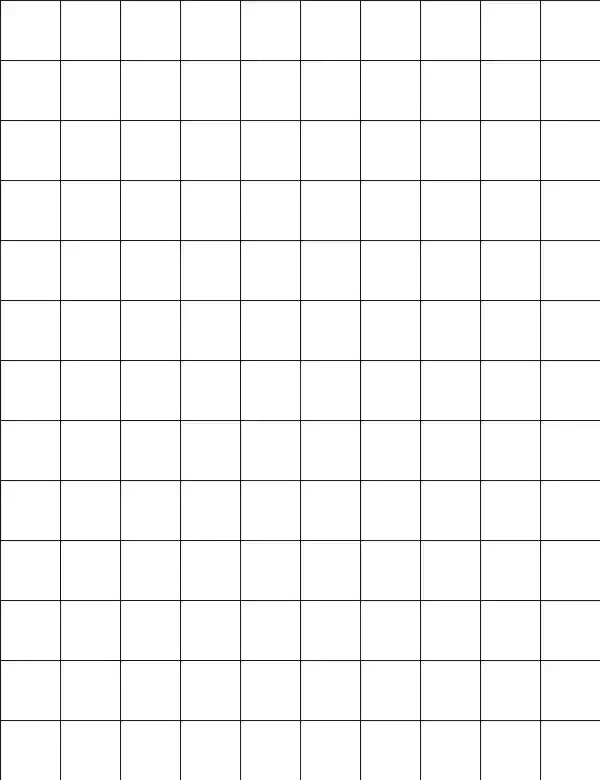
The easiest way is to press Print. The second sheet is the same grid with nothing in it, ready to draw on, and each printed sheet says how wide its squares are. If you are drawing on your own paper or sketchbook, measure and rule the same number of rows and columns using light pencil. Keep every square the same size and truly square, or the picture will stretch. Label the squares with the same letters and numbers so you never lose your place.
Draw lightly at first so mistakes can be erased later. Work on the outlines of the big shapes before adding any shading. If you ruled the grid in pencil, erase it gently once the shapes are right and finish without it. A printed grid stays on the sheet.
The grid method handbook goes through the whole method, with worked sizes and fixes for common problems.
FAQ
Is this grid maker free?
Yes. You can add a grid to as many photos as you like, then save or print them at no cost. There is no watermark on your picture and no account to create, so you can start as soon as the page opens.
Do I have to upload my photo?
No. Your photo stays on your device, because the grid is drawn by your own browser and nothing is sent to us. That also means it works quickly, even with a large photo straight from your phone's camera.
Can I use this on my phone without downloading an app?
Yes. The whole tool runs in your phone's browser, on iPhone and Android, with nothing to install. Press Choose a photo to pick from your camera roll, then press Save to Photos and choose to save the image from your phone's share options.
Can I print my photo with the grid on it?
Yes. Press Print to get two sheets at true size, your photo with its grid and the same grid left empty to draw on. The tool uses Letter or A4 paper based on your browser's region, and you can change it under “Adjust grid”. Each printed sheet says how wide its squares are.
What do the letters and numbers on the grid mean?
They name each square the way a map does. Columns use letters and rows use numbers, so A1 is the top-left square and B3 is second across and third down. The same names on your blank grid keep you from losing your place.
How many squares should my drawing grid have?
Start with Medium, which has 5 squares across the short side of your photo. Choose Fewer, with 3, for simple subjects and young beginners, and More, with 8, for faces and fine detail. You can switch at any time and see the result at once. For an exact number of squares, open “Adjust grid”.
Can art teachers use this with a class?
Yes. Students do not need accounts, so a whole class can open the page and start straight away. You can also run one photo through the tool yourself and print copies. The square names make it easy to give feedback on one part of a drawing.
How do I enlarge a picture onto a canvas or wall?
Save your photo with its grid, then rule the same number of rows and columns on your canvas or wall with larger squares. Copy each square across in turn. The picture keeps its shape at the bigger size as long as your squares stay truly square.
Will the grid lines be hard to see on my photo?
The tool picks the line color for you, with dark lines on a light photo and white lines on a dark one. Every line also has a soft outline in the opposite tone, so it stays visible when it crosses both bright and shadowed areas. Under “Adjust grid” you can pick black, white or any other color, and change the thickness and opacity.
Can I see one square bigger while I draw?
Yes. Tap or click any square and it opens large on its own. Previous and Next buttons walk through the squares in order, so you can keep your phone beside your paper and work through the whole picture one square at a time.
More grid tools
- Add grid to photoAdd grid to photo in your browser, with no sign-up and no watermark. Get a numbered grid over your picture, then save it or print it at true size.
 Grid overlayPut a grid overlay on any photo in your browser. Pick Fewer, Medium or More squares, then save the picture or print it at true size.
- Printable grid paperGet printable grid paper with Small, Medium or Large squares. Print a sheet on Letter or A4 paper, free, with no sign-up.