How do I turn a photo into a coloring page in my browser?
Use this photo to coloring page tool to make black outlines on white from any picture, ready for crayons or markers. The lines start thick and bold, and thin lines are one press away when you want more detail. The picture is read in your browser and never uploaded, so family photos stay on your device. Save the page as a PNG and print it at home.
Press “Choose a photo” and the picture turns into black lines on white. Pick thick or thin lines, adjust the detail if you like, then press “Download PNG” and print the file. The picture is processed in your browser and is not uploaded.
How to turn a photo into a coloring page
Choose your photo
Press “Choose a photo” to open the pictures on your phone or computer. A clear shot of one subject in good light, such as a pet or a favorite toy, gives the cleanest outlines.
Look at the lines
The photo turns into black lines on white. Lines start thick; switch to thin for more detail, or open “More settings” for line width, how much to draw and smoothing.
Compare with the original
Turn on “Show my photo” in “More settings” to hold the lines up against the picture. Then adjust until the spaces suit whoever will color them.
Save and print
Press “Download PNG”, print the page on Letter or A4, and hand out the crayons.
Pick a photo that gives clean outlines
Choose a picture where the subject stands apart from what is behind. A child in a bright jacket by a plain wall, a dog on a lawn or a stuffed rabbit on a bed all work. Each gives the lines a clear path to follow. Daylight from a window beats a dim room, because shadows and grain turn into scribbles.
Fill the frame with the subject. A small figure far across a park becomes a few tiny marks nobody can color. Busy backgrounds such as crowded shelves, patterned curtains and tree branches add lines everywhere. Step closer, or move the subject to a plain spot before taking the picture.
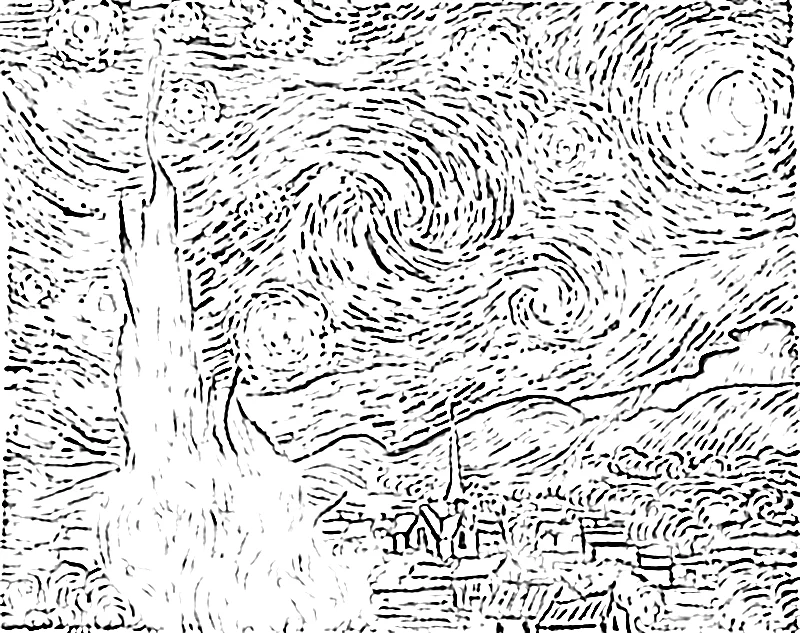
The Starry Night as a coloring page.
Make a page for a preschooler
Young children do best with big shapes and few of them. A photo of one favorite thing works well: the family cat asleep on a cushion, a wooden train, a sibling holding a balloon. Print the page and offer chunky crayons, which suit thick outlines and large spaces.
Sit with the child and talk about colors before the first stroke. Is the cat gray like the real one, or purple for fun? Either answer is fine, and the page belongs to the child once the first color goes down. Keep a few pages from different photos in a folder for the next quiet afternoon.
Pages for a classroom
A teacher can turn a class pet, the school garden or a picture from a field trip into a page for every pupil. Print one copy per child and let each choose their own colors. When the pages go up on the wall, the same outline shows many different ideas. That makes a good starting point for a talk about color and mood.
For a lesson on a place, such as the town library, a photo of the building gives a shape the pupils already know. Ask them to color it as it looks, then as they would like it to look. Pages from a series of photos also make a simple handout for a unit on animals, plants or local landmarks.
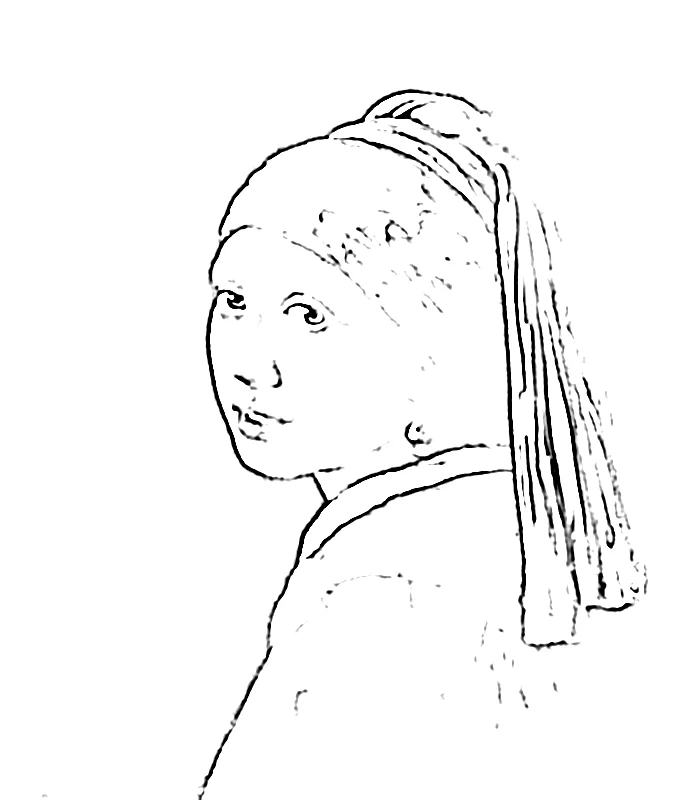
One clear subject gives big spaces to color.
Gifts and keepsakes
A photo of a grandparent’s house, a wedding venue or a family dog makes a personal gift once the lines are on paper. Print the page, add a few colored pencils in an envelope and send the set to a relative who likes to color. Children can color a page of their own home and mail it back to a grandparent.
For a birthday party, print a page of the guest of honor’s pet or favorite toy for each child at the table. Everyone gets the same outline, and the finished pages become a small memory of the day.
Print so the lines stay clear
Open the PNG in the print window and select the paper size that matches your printer, Letter or A4. Turn on the option to fit the picture to the page so no edge is trimmed. Plain copy paper handles crayons and colored pencils. Markers soak through thin paper, so use heavier paper or put a spare sheet underneath.
A black-and-white test print tells you quickly whether the lines are bold enough. If the strokes look faint, go back, make the lines thicker and print again. If the page looks crowded, lower how much is drawn before printing the final copy.
Every pupil gets the same outline and picks their own colors.
Color with a plan
Place the original photo beside the page so the colorer can match real colors. Think of the orange of a cat’s fur or the red of a coat. For a more playful result, pick three or four colors first and use only those across the whole page. Pencils work well for small areas, and markers or crayons cover the large ones faster.
When several people color the same page, give each person a different set of colors. The finished pages look different, even though every outline is the same. Date the back of each page; a year later the pages show how both the child and the colors have changed.
FAQ
Can I turn photos into coloring pages without uploading them?
Yes. The photo is read and turned into lines inside your browser, and the picture is never uploaded to a server. Family photos, school pictures and pet snapshots stay on your phone or computer.
How do I turn a regular picture into a coloring page?
Press “Choose a photo”, pick a picture, and black lines on white appear. Keep the thick lines for an easy page or switch to thin lines for more detail, then press “Download PNG” to save it. No sign-up or app is needed.
Can I make a simple page with thick outlines for a preschooler?
Yes. Thick lines are the starting choice, so the first result already has bold outlines. For fewer small areas, open “More settings” and lower how much is drawn, or raise smoothing. A photo of a single pet or toy on a plain background leaves the largest spaces.
My coloring page is too busy. What can I change?
Open “More settings”, lower how much is drawn, then raise smoothing to even out small marks. Thick lines also make tiny areas matter less. Starting from a photo with a plainer background helps most, because fewer objects means fewer outlines.
Which photos make the clearest coloring pages?
Clear photos of one main subject in good light work best, such as a pet, a toy or a portrait against a plain wall. Strong edges become clean lines, while dim, grainy or cluttered pictures create many small marks. “Show my photo” lets you compare the lines with the original.
Is the photo to coloring page tool free?
Yes. You can use the tool free, and “Download PNG” saves the page with no watermark. With Pro you also get a PDF sized for Letter or A4 and a bigger PNG, though the free file already prints well at home.
Can I print the coloring page I create?
Yes. Download the PNG and print the file from your device on Letter or A4 paper. For a ready-made sheet, Pro gives a Letter or A4 PDF. In the print window, choose to fit the picture to the page so the edges are not cut off.
What resolution and file do I get when I download?
The free download is a PNG, 1500 pixels on its long side. Pro adds a PNG that is 3508 pixels on its long side, plus a Letter or A4 PDF. PNG keeps the black lines crisp against the white background.
Can I make different styles from the same photo?
Yes. Switch between thick and thin lines, then change line width, how much to draw and smoothing under “More settings”. Download each version you like and print them side by side to see which one suits the child or the occasion.
Updated
Related tools
- 10x10 gridPrint a blank 10x10 grid with 100 squares in three sizes. Add numbers 1 to 100, then print the sheet or save it as a clear PNG.
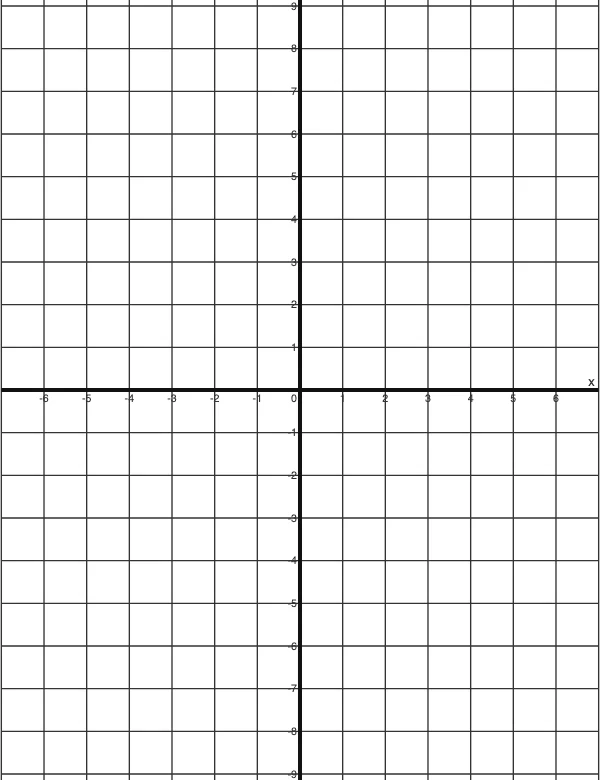 4 Quadrant Graph PaperPrint free 4 quadrant graph paper with bold x and y axes, numbered both ways from 0. Pick square size and paper, then save as PDF, PNG or JPG.
- 8x8 gridPrint a free 8x8 grid of 64 squares in your browser. Pick Small, Medium or Large squares, add letters and numbers, then print or save a PNG.
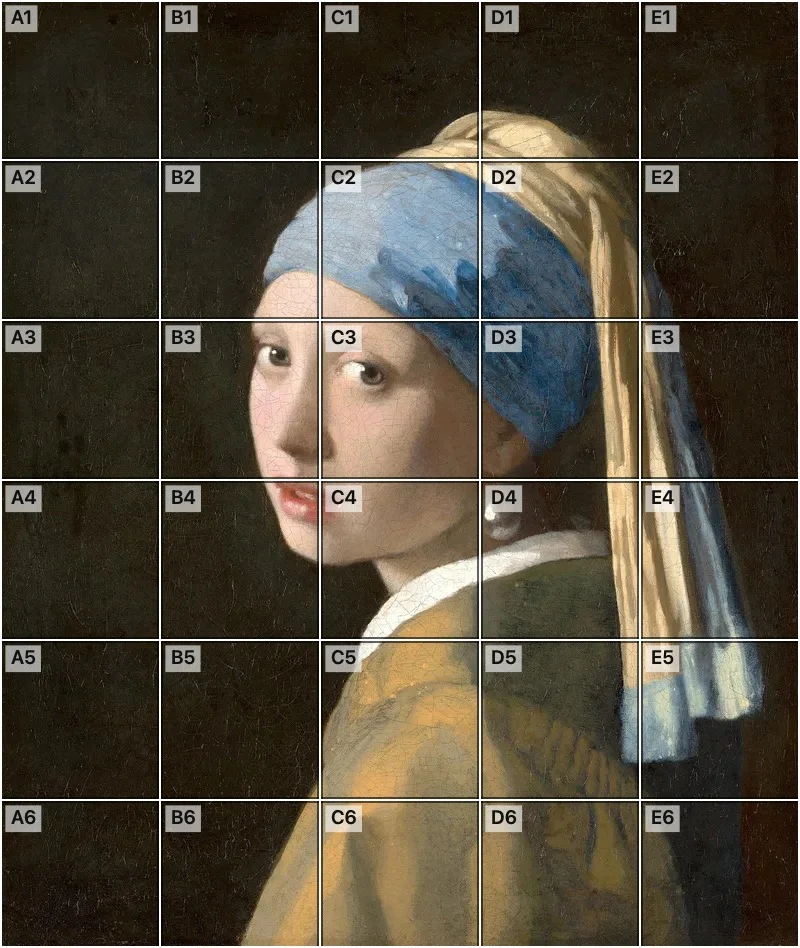 Add grid to photoAdd a grid to any photo in your browser, with no sign-up and no watermark. Get a numbered grid or a plain grid overlay, then save it or print it at true size.
- Ar TracingInstead of ar tracing with a phone stand, put a numbered grid on your own photo, then save or print it and copy it square by square. Free, no sign-up.
 Aspect Ratio CalculatorUse this aspect ratio calculator to turn a width and height into a ratio like 16:9. You also get the decimal and a resize that keeps the shape.
- Atmospheric PerspectiveAdd a numbered grid to a photo and compare near and far squares to see atmospheric perspective: lighter values, softer color. Free, in your browser.
- Bargue DrawingPractice Bargue drawing from your own photo: add a numbered grid with 5, 8 or 12 squares across, then save it or print a gridded sheet and an empty one.