How do I find a ratio with an aspect ratio calculator?
To find the ratio of any size, type its width and height into the aspect ratio calculator. The simplest whole-number ratio appears, so 1920 by 1080 reads as 16:9. You also get the same ratio as a decimal and the nearest common ratio, with how far off your size is. Type a new width or height to get the other side at the same shape. A photo can fill in its own pixel size.
16:9
1920 by 1080 is 16:9, or 1.78:1 as a decimal.
A common ratio, used for TV, YouTube and most monitors.
Resize and keep the same shape
16:9
An aspect ratio calculator reduces a width and height to the smallest whole numbers with the same proportion, so 1920 by 1080 becomes 16:9. Decimals work too: 8.5 by 11 gives 17:22. Any unit is fine, as long as both sides use the same one.
How to use the aspect ratio calculator
Type the width and height
Enter the width and the height in the two boxes, using the same unit for both: pixels, inches or centimeters. Decimals are fine. To read a picture’s size instead, press “Use a photo’s size” and pick the file.
Read the ratio
The simplest ratio appears at once, with the same ratio as a decimal and the nearest common ratio. When your size matches 1:1, 4:3, 3:2, 16:9, 9:16 or 4:5, that quick button lights up; pressing one fills in that shape.
Resize and keep the shape
Under “Resize and keep the same shape”, type a new width to get the matching height. Or type a new height to get the matching width.
Use the new size
Copy the result into your editor, export settings, print order or frame list. The picture then keeps its shape and does not look squeezed or stretched.
Measure the right two sides
Start with the edges you must match. For a screen or a video frame, read the pixel width and height from the project settings or the file properties. For a print or a frame, measure the paper or the opening with a ruler and write both sides in inches or both in centimeters. Mixed units give a wrong ratio, so convert one side before typing.
Measure the visible opening of a frame, not the outer edge of the wood. A mat or a rabbet hides a few millimeters on every side, and those lost millimeters change the shape slightly.
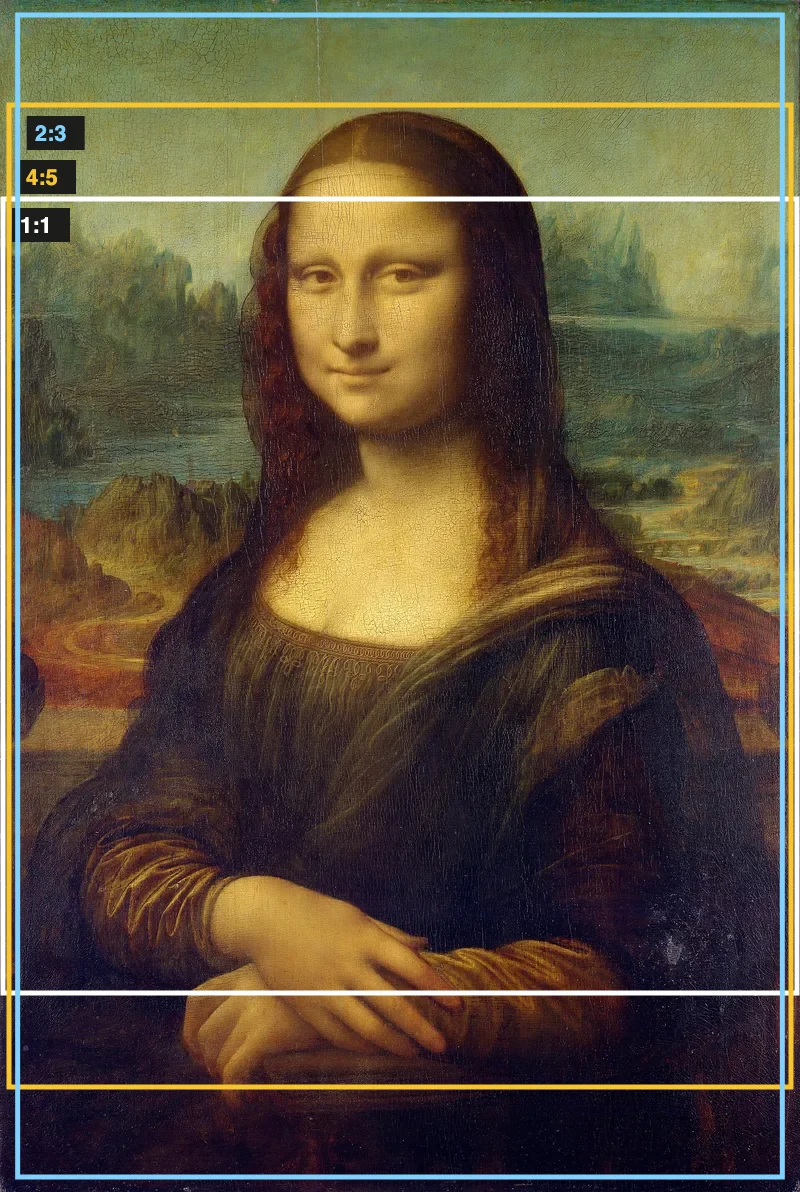
One painting framed at 1:1, 4:5 and 2:3: each ratio keeps a different part.
Switch a video between landscape, portrait and square
Begin with the size of the clip you already have and read its ratio. Then press 16:9, 9:16 or 1:1 to see the shape you want to reach. A 16:9 landscape frame turned upright becomes 9:16, the shape of a phone held in one hand, so the two numbers swap places. A 1:1 square sits between them.
Type the width of the new frame under the resize area and read off the height. When the new frame has a different shape from the clip, decide before exporting whether to trim the edges or add bars at the sides. Bars keep everything visible. Trimming fills the frame but removes picture.
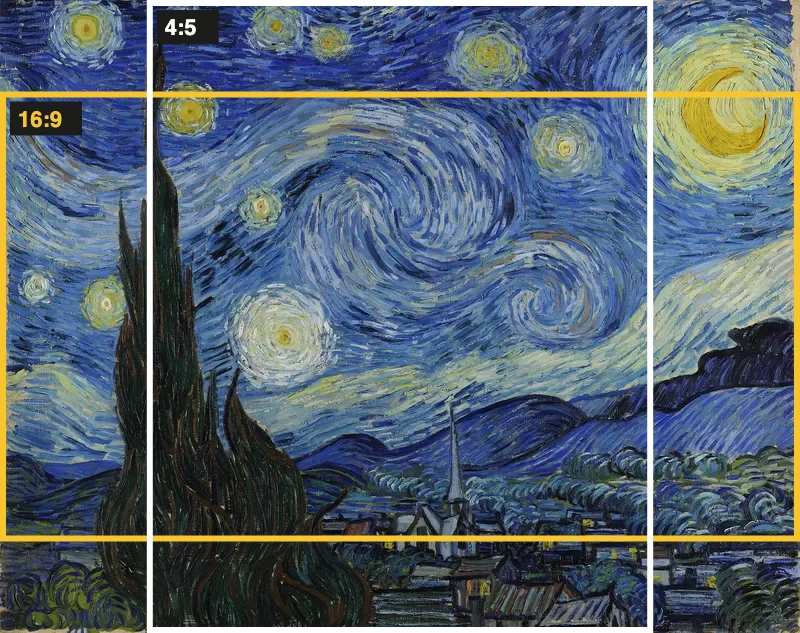
The same picture framed at 16:9 and at 4:5.
Check a print or frame before you order
A photo and a sheet of paper often have different shapes. Type the photo’s pixel size and note the decimal ratio. Then type the paper size in inches or centimeters and note that decimal too. The closer the two decimals are, the smaller the unused strip of paper or the smaller the slice cut from the photo.
US Letter at 8.5 by 11 reads as 17:22, about 1.29:1 when turned sideways, while a camera photo at 3:2 is 1.5:1. The photo is the longer shape, so a full-width print leaves paper spare at the top and bottom. Seeing the difference in numbers is quicker than ordering a print and finding a white margin on one side.
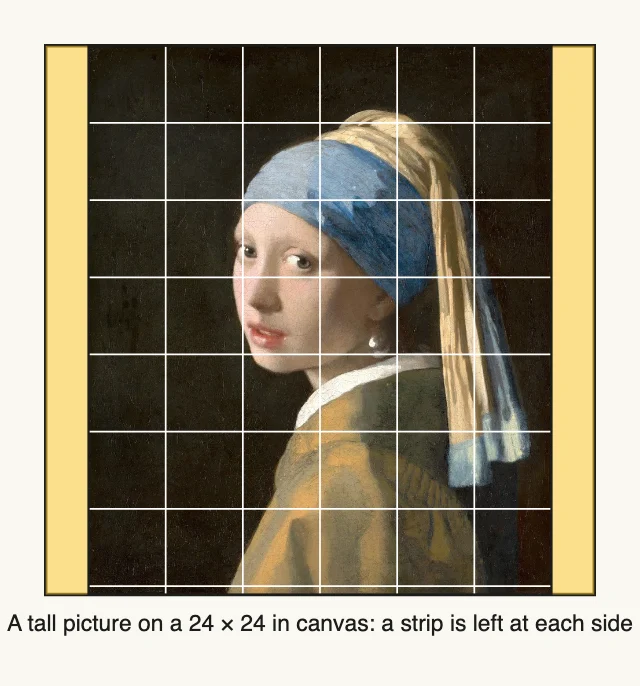
When the shapes differ, part of the paper is left over.
Read the nearest common ratio as a hint
The nearest common ratio names the familiar shape your size is closest to, and how far off it is. A small gap means the size is almost that shape. A video of 1920 by 1080 matches 16:9 exactly. A screenshot that is a few pixels short on one side may land close to 16:9 without matching it.
When the gap is small, adjusting one side by a few pixels often brings the size onto the common shape. Use the resize area to see which new width or height gives the exact ratio.
Repair a stretched or squeezed picture
Stretching happens when width and height are changed separately. To repair it, type the picture’s original size, then enter the new width you need under the resize area. Copy the height it returns, and type both numbers into your editor’s size fields. Switch off any proportion lock first, so the editor does not recalculate either one.
If a picture already looks wrong, compare its current ratio with the ratio of the original file. A different ratio means the shape was altered. Setting the original ratio back, with the same width, restores the proportions.
Pick a ratio from the place the picture will go
Work backward from the destination. A square, 1:1, suits profile pictures and many grid-style posts. A 4:5 shape gives a tall portrait post. A 16:9 shape fits widescreen video and many monitors. 4:3 and 3:2 are common camera and print shapes. A 9:16 shape fills an upright phone screen.
If you do not know the destination’s shape, look for its stated size in pixels or inches and type those two numbers. The ratio that results is the one to match. If the shape is one of the usual ones, its quick button lights up.
Prepare paper for drawing from a photo
When you copy a photo square by square, the paper should have the photo’s shape. Otherwise the squares drawn on the paper do not line up with the squares on the photo, and a strip is left over.
Let the calculator read the photo’s pixel dimensions, then type the paper width you plan to use under the resize area. The height returned is the height that keeps the photo’s shape. Cut the paper or choose a canvas to that size, and the drawing grid will fit from edge to edge. The grid calculator then gives the square size for that paper.
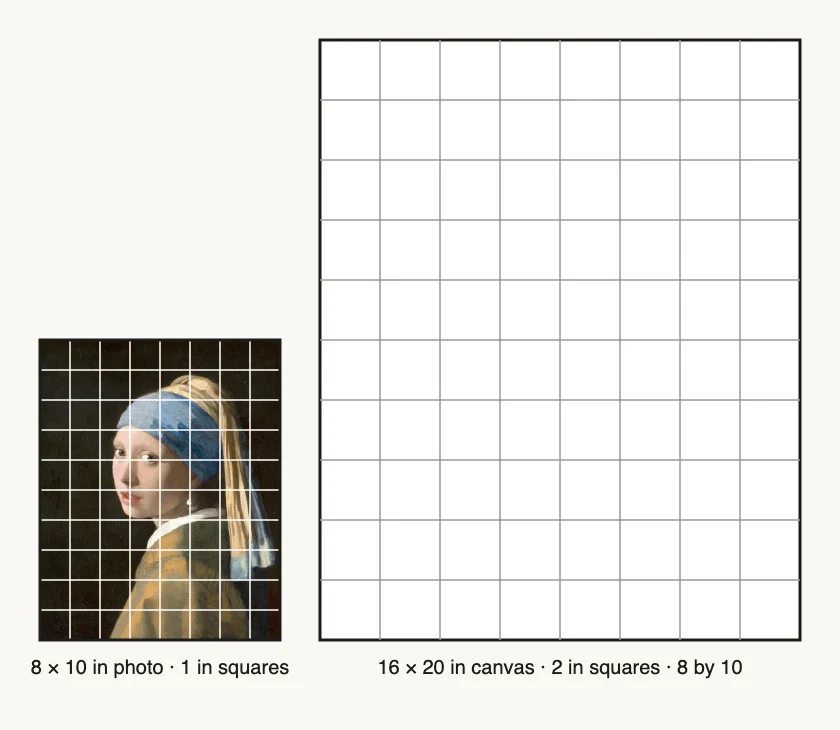
Same shape, twice the size: the grid lines up square for square.
The common format presets
Under “Common ratios” sit six buttons: 1:1, 4:3, 3:2, 16:9, 9:16 and 4:5. Pressing one fills the width and height boxes with that shape, so the decimal and the resize area work from it at once. The button lights up whenever the numbers you typed reduce to that ratio.
As decimals, 4:3 is about 1.33, 3:2 is 1.5, 16:9 is about 1.78, and 4:5 is 0.8. A 1:1 square is exactly 1. The 9:16 button is 16:9 turned upright, so its decimal is about 0.56. The calculator also names what each shape is used for when your size lands near it, such as 3:2 for most camera photos and 16:9 for TV and most monitors.
Use it as an image aspect ratio calculator
The same tool works as an image ratio calculator for any picture. Press “Use a photo’s size” and the width and height fill in from the file, read in your browser. The ratio appears, along with the nearest common shape and how far off it is. Use the answer to pick a crop, a frame or a print size that suits the picture.
Scale and crop: use it as an aspect ratio converter
Scaling keeps the shape. Type the original size, then a new width under “Resize and keep the same shape”, and the height follows. Nothing is cut, and the picture only gets bigger or smaller.
Cropping changes the shape, and that is what an aspect ratio converter is for. To crop a 4000 by 3000 photo to 16:9, press 16:9, which fills in 16 and 9. Type 4000 as the new width. The new height is 2250, so 750 pixels of height are trimmed.
To crop the same photo to a 1:1 square, press 1:1 and type 3000 as the new height. The new width is 3000, so 1000 pixels of width are trimmed. Then crop to those sizes in your editor.
Keep a list of sizes for repeat work
If you export the same artwork for several places, write down each size next to its ratio. A designer making a banner, a square post and a tall story image from one picture can check each target in turn. Keep the resulting widths and heights in one note. Next time, the sizes can be pasted straight into the export settings, with no repeated arithmetic.
When a client sends one size in inches and another in pixels, enter each separately. The ratios, not the units, show whether two requests are the same shape.
FAQ
How do I calculate aspect ratio?
Divide the width and the height by the largest whole number that goes into both. The two results are the ratio. For 1920 by 1080 that gives 16:9. The calculator does this as you type, and it also shows the decimal form, such as 1.78:1. For a picture, press “Use a photo’s size” and it works as an image ratio calculator too.
What is 1920x1080 in ratio?
1920 by 1080 is 16:9, the usual widescreen shape. As a decimal it is 1.78:1. Type the two numbers into the boxes and the calculator shows both forms. It also names the nearest common ratio and how far your size is from it.
What aspect ratio is 1440x1440?
It is 1:1, a square. Any pair of equal sides gives 1:1, whatever the unit. Type the same number in both boxes to see it; the 1:1 quick button lights up.
How do I change the size without stretching the picture?
Enter the original width and height, then use “Resize and keep the same shape”. Type the new width and the new height appears, or type the new height and the width appears. Both numbers then share the original ratio, so nothing is stretched.
Which pixel sizes have a 4:5 shape?
A 4:5 picture is one and a quarter times as tall as it is wide. Ratios do not fix pixel counts. Press the 4:5 button, type the width you need under the resize area, and read the height.
Can I use the calculator for inches or centimeters?
Yes. Pixels, inches and centimeters all work, as long as the width and the height use the same unit. This suits frames, paper and prints. Decimals are accepted, so 8.5 by 11 inches gives 17:22.
Is a ratio the same thing as a size in pixels?
A ratio describes the shape of a picture, while pixels describe its size. A small and a large picture can share 16:9. Keeping the ratio keeps the shape, and changing the pixel count only makes the picture bigger or smaller.
Can I use any custom ratio?
Yes. Type any width and height and the calculator reduces them to the simplest whole-number ratio. The quick buttons only save typing for six common shapes. Your own numbers can be a screen, a print, a canvas or a photo.
Why does my image look stretched?
A stretched image has had its width and height changed by different amounts. Type the original size, enter only one new side under the resize area and use the height or width it returns. Both sides then change together.
How can I find the aspect ratio of a photo?
Press “Use a photo’s size” and choose the photo. Its pixel width and height fill in the boxes and the ratio appears. The photo is read in your browser and is not uploaded.
Updated
Related tools
- 10x10 gridPrint a blank 10x10 grid with 100 squares in three sizes. Add numbers 1 to 100, then print the sheet or save it as a clear PNG.
 4 Quadrant Graph PaperPrint free 4 quadrant graph paper with bold x and y axes, numbered both ways from 0. Pick square size and paper, then save as PDF, PNG or JPG.
- 8x8 gridPrint a free 8x8 grid of 64 squares in your browser. Pick Small, Medium or Large squares, add letters and numbers, then print or save a PNG.
 Add grid to photoAdd a grid to any photo in your browser, with no sign-up and no watermark. Get a numbered grid or a plain grid overlay, then save it or print it at true size.
- Ar TracingInstead of ar tracing with a phone stand, put a numbered grid on your own photo, then save or print it and copy it square by square. Free, no sign-up.
- Atmospheric PerspectiveAdd a numbered grid to a photo and compare near and far squares to see atmospheric perspective: lighter values, softer color. Free, in your browser.
- Bargue DrawingPractice Bargue drawing from your own photo: add a numbered grid with 5, 8 or 12 squares across, then save it or print a gridded sheet and an empty one.
- Baroque DiagonalLay a 3 by 3 grid over your photo to see where a baroque diagonal runs, from lower left to upper right. Save it or print two sheets, free.