Which grid calculator gives me the square size for my canvas?
This grid calculator gives you the square size for your canvas from three entries. Type the size of your reference, the size of your paper, canvas or wall, and how many squares you want across. The answer shows the columns and rows and the square size on both surfaces. It also shows any spare strip or part row. With a reference in inches or cm, it says how many times bigger the drawing will be.
Your reference (photo or sketch)
Your paper, canvas or wall
8 by 10 squares
On your surface each square is 2 in.
On the reference each square is 1 in.
The drawing is 2 times the size of the reference and covers 16 by 20 in.
Use this grid calculator by entering your reference size, your drawing surface and the number of squares across. It divides both surfaces into the same grid and tells you the square size to mark on each one. If the shapes differ, it also says how much of the surface stays empty.
How to use the grid calculator
Enter the reference size
Type the width and height of your photo or print in pixels, inches or cm. Or press “Use a photo's size” and choose the photo; its width and height are read in your browser.
Enter the surface size
Type the width and height of the paper, canvas or wall where the drawing will go, in inches or cm. Use the area you plan to draw on, not the frame or the sheet edge.
Set the squares across
Choose how many squares should run across the width, from 1 to 100. The calculator starts at 8. A higher number gives smaller squares and more rows to draw.
Read the plan and mark your surface
Check the columns and rows, the square size on each surface, the enlargement and any strip or part row. Then measure that square size along your surface and draw the lines.
Measure the reference the way it will be copied
Measure the picture itself, edge to edge, and leave out the paper around it. For a printed photo, lay a ruler along the width and then the height. For a picture on a screen, use its pixel width and height, or let the calculator read them from the photo. Keep both sides in the same unit. If you plan to crop the photo before drawing, measure the cropped part, because the squares are counted across whatever size you enter.
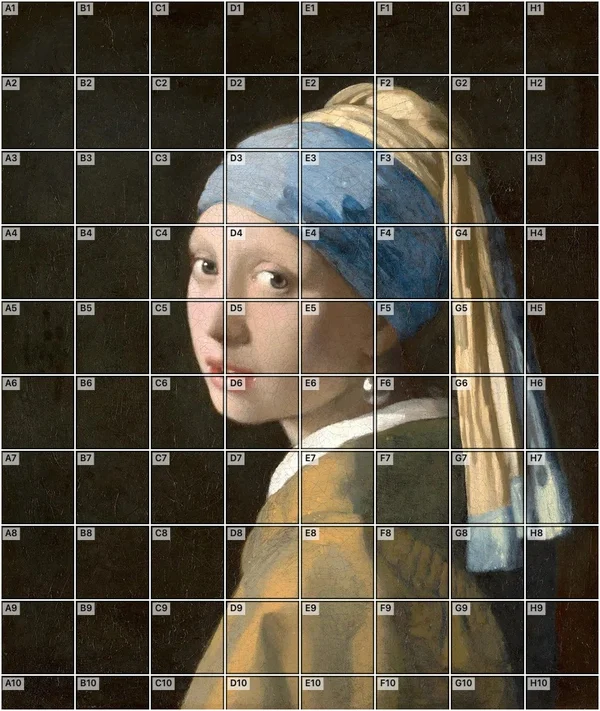
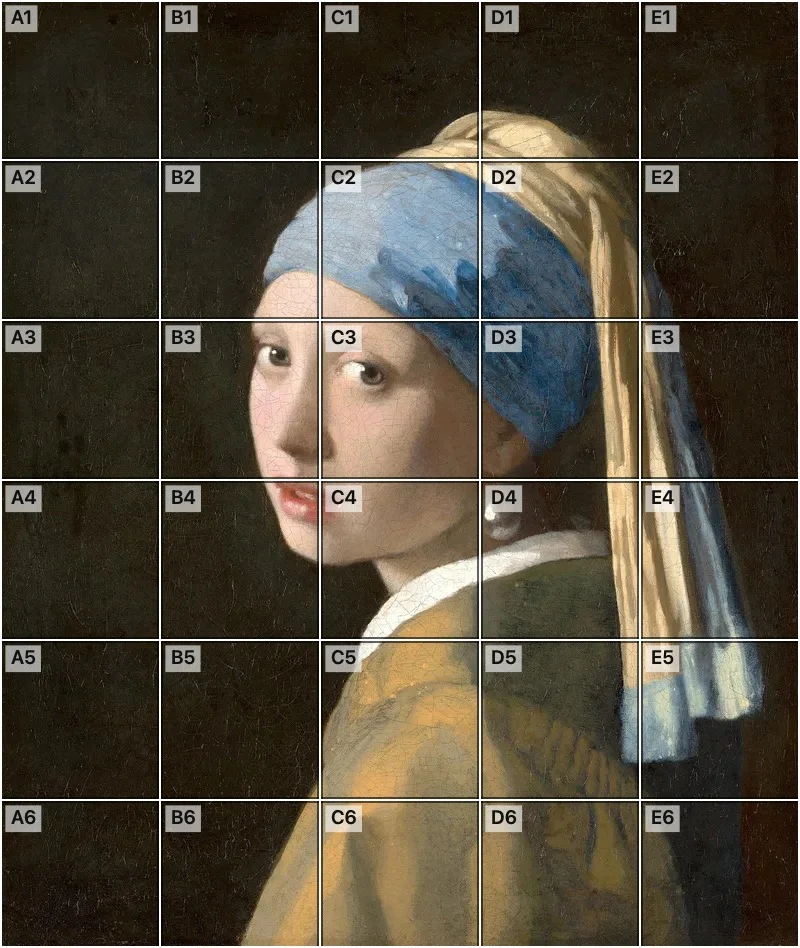
Measure the picture itself: here a portrait with its grid already on.
Measure the surface you will draw on
Lay the ruler across the part of the paper, canvas or wall where the drawing will sit. On a stretched canvas, measure the front face and ignore the sides. On paper, decide how wide a margin you want and measure what remains inside it. For a wall, stick painter's tape at the four corners and measure between the tape lines. The calculator takes inches or cm for this size, so pick the unit your ruler or tape measure shows.
Pick the number of squares across for your subject
A simple landscape with large shapes needs few squares. Each square holds a big piece of the picture, and the lines you copy are long and plain. A face with small features asks for more squares, because each square then holds less and is easier to judge. Someone new to the method can start with fewer squares and move up once the first drawing feels comfortable. Change the number, read the answer again, and compare the square size you would have to mark out. A square that is awkward to measure, such as one with many decimals, is a good reason to try a nearby count.
Turn the square size into pencil marks
The square size on the surface is the distance between your marks. Make a mark at that distance along the top edge, repeat along the bottom edge, and join each pair with a light line. Do the same down the two sides. The square size on the reference is the spacing for the grid on the photo or the print. The starting example is an 8 by 10 inch reference on a 16 by 20 inch canvas, with 8 squares across. The canvas squares are 2 inches and the reference squares are 1 inch. The drawing comes out twice the size.
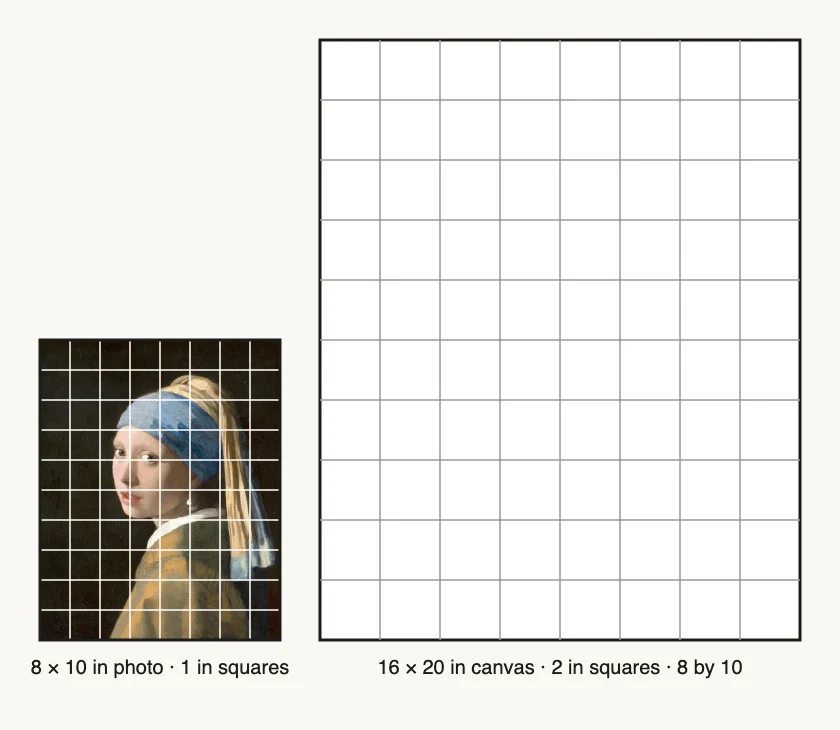
The starting example: 8 by 10 squares on both, twice the size on the canvas.
Use it as a grid method calculator and a measurement grid
A measurement grid, also called a measuring grid, is a set of equal squares of a known size laid over a picture or a surface. Because every square has the same size, you can read a position or a length by counting squares. This calculator gives that size for you. It shows the square size on the surface in inches or cm, and the area the drawing covers. Mark the squares at that spacing, and your measuring grid is ready for the grid method of drawing.
Proportion and mural scaling in one plan
Scaling a drawing is a proportion: one size is to its enlarged size as every other size is to its own. The calculator keeps the proportion for you. The line that says how many times bigger the drawing is, shown when the reference is in inches or cm, is the scale factor. The starting example is a factor of 2, and every length on the canvas is twice its length on the reference.
A mural is the same sum with a much larger surface. Take an 8 by 10 inch reference and a wall 96 by 120 inches, with 8 squares across. Each wall square is 12 inches and each reference square is 1 inch, so the drawing is 12 times bigger. The grid has 10 rows on both.
For a wall in feet, convert to inches or cm before you type. The mural calculator is built for walls, so use it when the surface is a wall.
Decide what to do with a spare strip
When the surface and the reference are not the same shape, a strip stays empty at the side or at the top and bottom. Decide before drawing the first line. Centering the grid splits the strip evenly on both sides. Pushing the grid against one edge leaves a single wide margin that suits a frame with a mat. Extending the background into the strip, with sky or a plain wall, fills the surface without changing the subject. If none of these suits, choose a canvas with the same shape as the reference and enter its size instead.
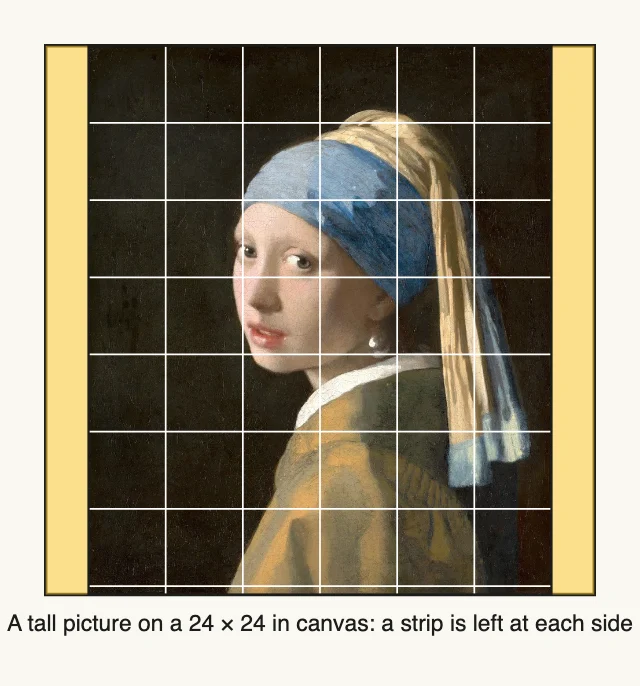
A tall picture on a square canvas leaves a strip at each side.
Fix a part row before it surprises you
If the last row is a part square, the bottom of the drawing sits in a shorter band than the others. You can keep it and draw that band with extra care, comparing it with the full squares above. You can also follow the suggested number of squares across, which gives whole rows and a grid with no shorter band. Entering the new number takes a few seconds and saves a correction halfway through a painting.
Name the squares on both sheets
Write letters along the top edge and numbers down the side, on the reference and on the surface, in light pencil or in the margin. Then “C4” points to the same place on both, and you can find your spot again after a break. The photo grid on this site names squares the same way: columns are letters, rows are numbers, and the top-left square is A1. If you print the reference with that grid, the names on the paper match the names on your canvas.
Work one square at a time
Pick a square and look at where the shapes cross its four edges. Mark those crossing points first, then connect them with the line or shape that runs through the square. Compare each angle with the edge of the square rather than with the whole picture. Finish a row before moving to the next, so your hand does not rest on lines you have already drawn. Keep the grid lines light, so they can be erased, painted over or covered by the next layer.
Copy each square into its partner on the canvas.
Situations that suit a grid plan
Enlarging a small print onto a canvas
A print on the desk is usually a few inches wide and the canvas is much larger. Measure the print, measure the canvas face, and enter both. The enlargement figure tells you how much bigger every line will be, and the square size tells you where to mark the canvas.
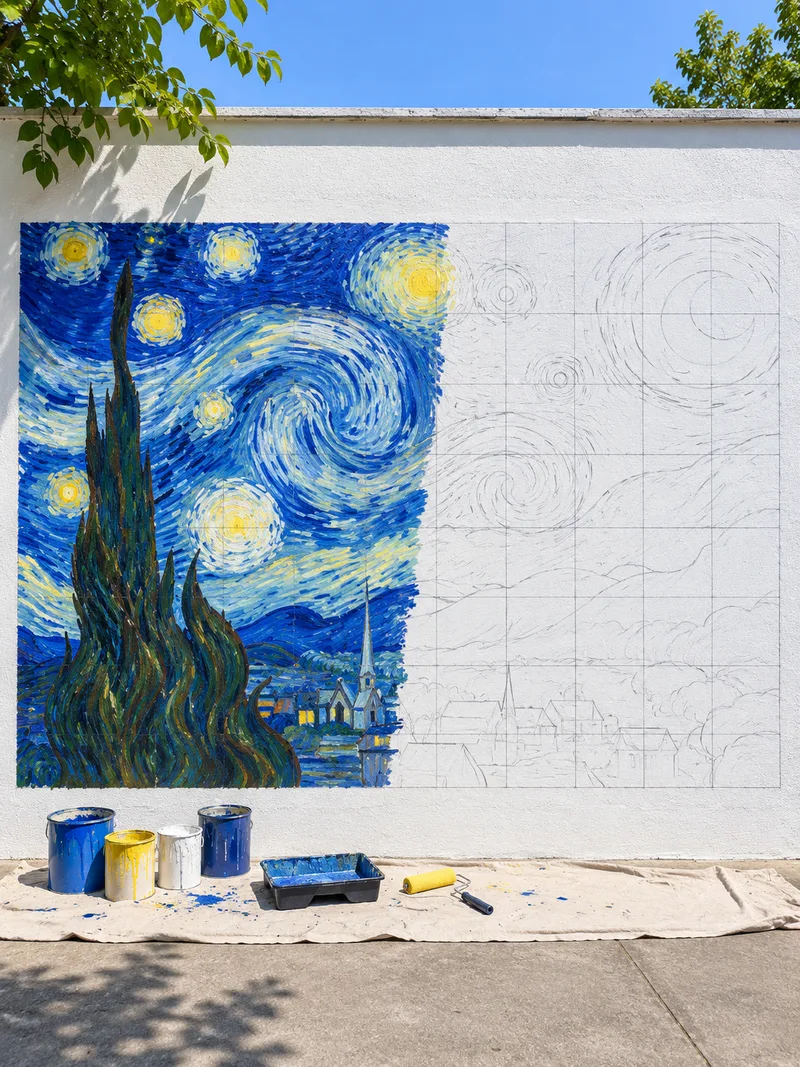
Scaling a sketch up to a wall
For a wall, the squares are large and the lines are long, so a chalk line or a long straightedge helps. Choose fewer squares across so the grid stays easy to mark with a tape measure. Use the area covered to plan how much wall to prepare and how much paint you need. The mural calculator is made for walls and shows how big each square must be.
A sample image of a wall grid: squares ruled first, then outlines, then paint.
Drawing from a screen onto paper
When the reference is a picture on a screen, use its pixel width and height, or press the button that reads a photo's size. Enter your paper size and the squares across, then draw the grid on the paper. On the screen, follow the same squares with a grid over your photo. Under “Adjust grid”, set its Columns and Rows to the numbers the calculator gave.
Practicing with a classroom set of sheets
When several people copy one reference onto the same size of paper, give everyone the same squares across and the same paper size. Each sheet then gets identical lines, and the drawings are easy to compare by square name.
FAQ
Is there an online grid calculator that works out the spacing for my canvas?
Yes. Enter the reference size, the canvas or paper size and the number of squares across, and the calculator returns the square size on both surfaces. It also gives the columns and rows, how many times bigger the drawing is (for a reference in inches or cm) and the area covered. It runs in the browser with no sign-up.
How do I calculate grid cell size?
Divide the width of a surface by the number of squares across. A 16 inch wide canvas with 8 squares across gives 2 inch squares, and an 8 inch wide reference gives 1 inch squares. The calculator does both divisions and works out the rows as well.
How does a grid help me copy a drawing at a bigger size?
Draw the same grid on the reference and on the surface, with the same number of squares. Then copy what lies in each square into its partner. When the squares on the canvas are twice as wide as the squares on the reference, the drawing comes out twice as big.
How many squares across should I use?
Choose a number from 1 to 100 that matches the amount of detail. Fewer squares suit broad shapes, and more squares suit a face or fine texture. If the last row is a part square, the calculator says how much and suggests a count that gives whole rows.
Do the squares have to be square?
Yes, the squares stay square, so the picture is never stretched in one direction. When the surface has a different shape from the reference, the whole reference still fits. A strip is left at the side or at the top and bottom, and the calculator tells you which.
What canvas size fits my reference photo?
A canvas with the same shape as the reference fits best, such as 16 by 20 inches for an 8 by 10 inch photo. If you try another shape, the calculator still fits the whole reference and reports the strip left over. You can then judge whether that canvas works.
Does it work out the aspect ratio?
It compares the shape of your reference with the shape of your surface, which is why a leftover strip is reported. For the ratio itself, such as 16:9, the aspect ratio calculator on this site gives the simplest whole-number ratio.
Does anything get uploaded?
No. “Use a photo's size” reads the width and height of the photo in your browser, and the photo is not uploaded. You can also skip the photo and type the numbers.
Is the grid method the same as scaling a mural?
The idea is the same: one grid on a small reference and a matching grid on the large surface. For a wall, enter the wall area in inches or cm as the surface size, and the calculator gives the square size to measure out.
Is there a free grid app to install?
There is nothing to install. The calculator is free, needs no sign-up, and opens in the web browser of any phone, tablet or computer.
Updated
Related tools
- 10x10 gridPrint a blank 10x10 grid with 100 squares in three sizes. Add numbers 1 to 100, then print the sheet or save it as a clear PNG.
 4 Quadrant Graph PaperPrint free 4 quadrant graph paper with bold x and y axes, numbered both ways from 0. Pick square size and paper, then save as PDF, PNG or JPG.
- 8x8 gridPrint a free 8x8 grid of 64 squares in your browser. Pick Small, Medium or Large squares, add letters and numbers, then print or save a PNG.
 Add grid to photoAdd a grid to any photo in your browser, with no sign-up and no watermark. Get a numbered grid or a plain grid overlay, then save it or print it at true size.
- Ar TracingInstead of ar tracing with a phone stand, put a numbered grid on your own photo, then save or print it and copy it square by square. Free, no sign-up.
 Aspect Ratio CalculatorUse this aspect ratio calculator to turn a width and height into a ratio like 16:9. You also get the decimal and a resize that keeps the shape.
- Atmospheric PerspectiveAdd a numbered grid to a photo and compare near and far squares to see atmospheric perspective: lighter values, softer color. Free, in your browser.
- Bargue DrawingPractice Bargue drawing from your own photo: add a numbered grid with 5, 8 or 12 squares across, then save it or print a gridded sheet and an empty one.