How do I use an image splitter to cut a photo into equal pieces?
To use this image splitter, choose a picture and set rows and columns from 1 to 10. It cuts the picture into equal pieces you can save. The split starts at 2 by 2. Quick buttons offer 1 by 2, 2 by 1, 1 by 3, 3 by 1 and 3 by 3. Nothing is cropped or stretched, and the picture stays on your device. On a computer the pieces download as one ZIP file. On a phone, a second button opens the share sheet so you can save them to Photos.
An image splitter divides one picture into equal tiles along rows and columns. Here you pick 1 to 10 of each, so a 3 by 3 split gives nine pieces. Every piece is cut from the picture's own pixels, and its file name sorts in order. Only a piece over 16 megapixels is made a little smaller.
How to split an image
Choose your picture
Press “Choose a picture” and pick a JPG, PNG, WebP, GIF or HEIC picture from your device.
Set rows and columns
Pick a quick choice such as 1 by 3 or 3 by 3, or enter your own rows and columns, each from 1 to 10.
Save every piece
On a computer, download one ZIP file with all the pieces. On a phone, press the second button that appears to open the share sheet, then save the pieces to Photos. PNG, WebP and GIF pictures give PNG pieces; JPG and HEIC give JPG.
Find each piece by its name
Every file name carries its row and column, like photo-row01-col02.jpg. The names sort in order in any file list, so you can place each piece where it belongs.
Plan the cuts before you pick numbers
Look at the shape of the picture first. A wide photo suits one row and several columns. A tall photo suits one column and several rows. A square photo can take the same number of rows and columns, such as 2 by 2 or 3 by 3.
Pieces take the shape of the cut. A 3 by 3 split of a wide photo gives nine wide pieces, not nine squares. If you need square pieces, start from a square picture.
Make your edits before you split. Brighten the photo, straighten the horizon and trim the borders first, because every piece is cut from the picture exactly as you give it.
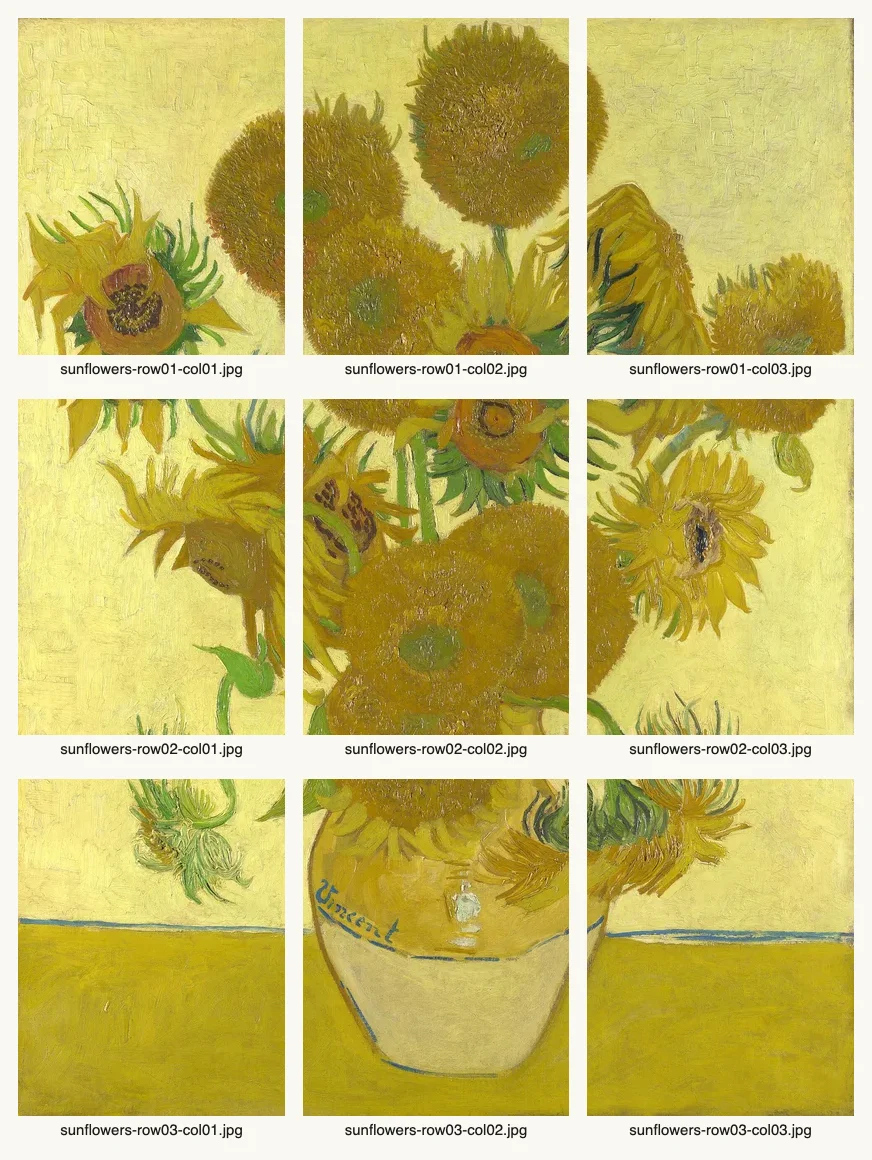
A 3 by 3 split: nine equal pieces, each named by row and column.
Split an image in half or into 3
For two equal pieces, press 1 by 2 to split an image in half into a left and a right piece, or 2 by 1 for a top and a bottom piece. For three equal pieces, press 1 by 3 for three pieces side by side, or 3 by 1 for three stacked. All four are quick buttons, so no typing is needed.
Pick the direction from the shape of the picture. A wide photo reads best cut into left and right parts, and a tall photo into top and bottom parts. If you want more than three, enter your own rows and columns.
Split a photo online without uploading it
This page works as a split image online tool. Open it in any browser on a phone, tablet or computer, choose the photo, and the pieces are made on your own device. Nothing is uploaded, nothing is installed, and no sign-up is needed.
Cut a wide photo into swipe slides
A panorama of a coastline, a street or a long table works well as a row of slides. Set 1 row and 3 columns for a three-slide carousel. Add columns if the scene is long enough to carry more.
Think about where the cuts will fall. A face or a sign split across two slides can read oddly when someone swipes. If an important detail sits on a cut line, try one more or one fewer column.
Upload the pieces in file-name order: column 1 first, then column 2, and so on.
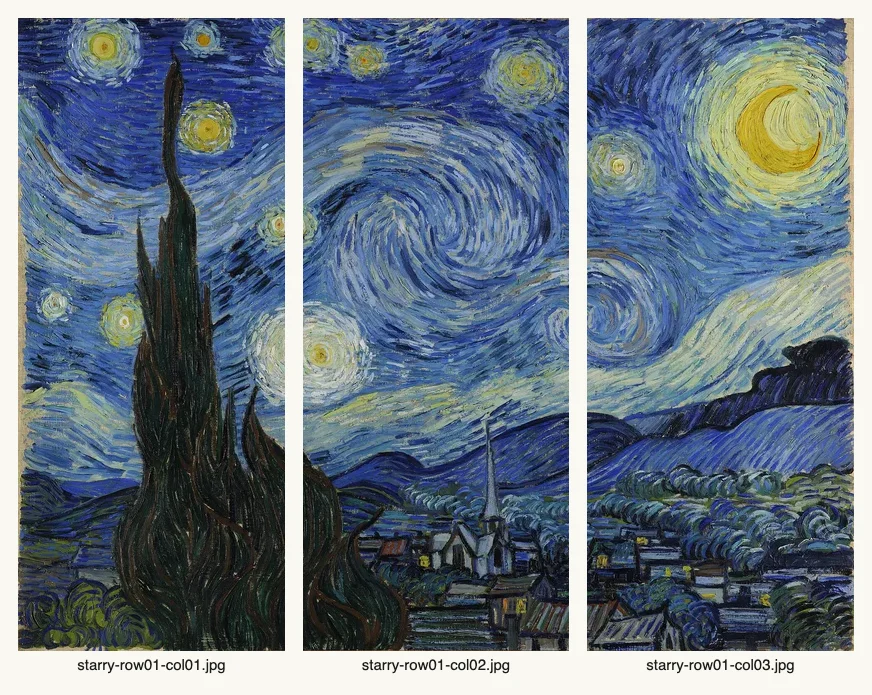
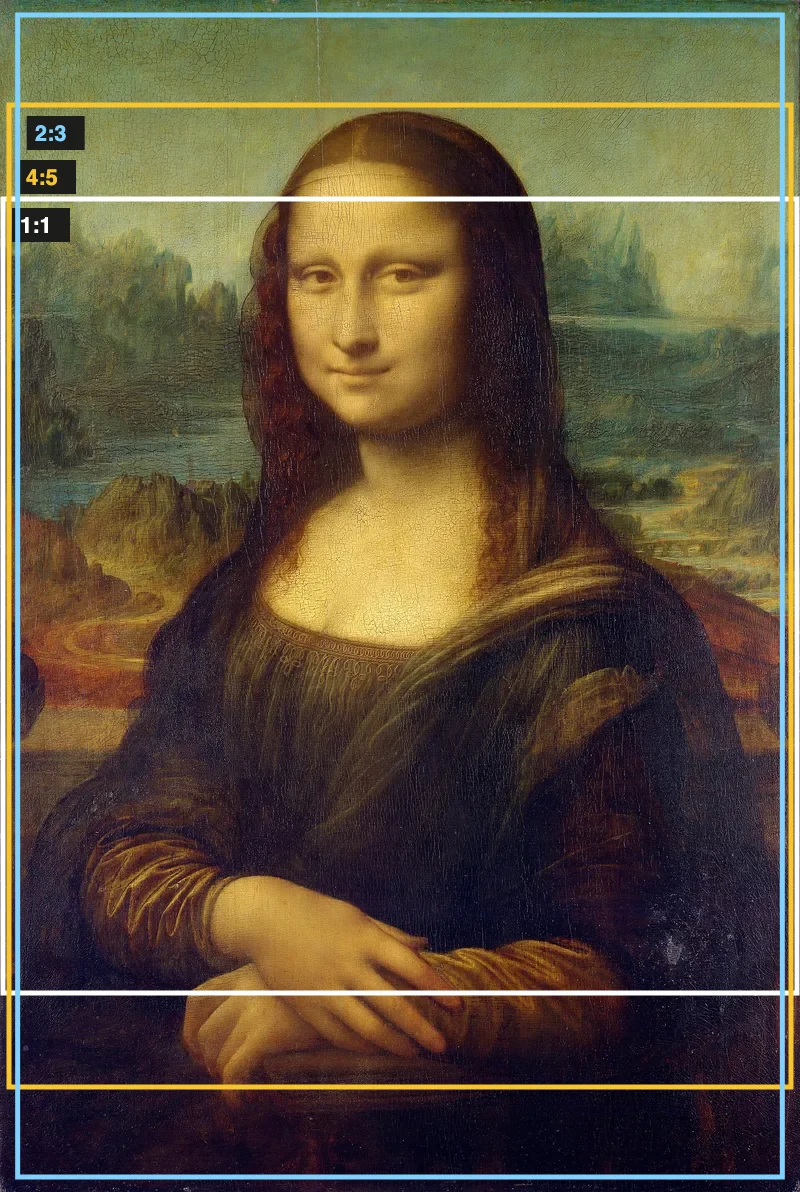
1 row, 3 columns: three slides from one wide painting.
Build a 3 by 3 Instagram profile grid
For an Instagram grid, cut the picture into nine pieces and post them in the right order. Pick a picture with a strong center, such as a portrait, a poster or a landscape with one clear subject. Use the 3 by 3 button, then save the nine pieces.
Profiles list the newest post first. To make the picture read correctly, post the piece with the highest row and column numbers first and finish with row 1, column 1. Working backward through the file names in order makes this easy.
Three columns match the width of a profile. One row gives a single line of three posts, and two rows give six. The profile itself shows each post as a tall 3:4 tile, so even square pieces get trimmed there. The Instagram grid maker cuts the picture to that tall shape and numbers the posts in the order to upload them.
Print a large picture across several sheets
Split a picture into pieces when it is bigger than one sheet of paper. A 2 by 2 split gives four pieces for four sheets. A 3 by 3 split gives nine.
Print each piece on its own sheet, then lay the sheets out in rows. Row 1 goes along the top, and the column number gives the position within the row. The file names tell you where each sheet belongs, so you can number the back of each sheet before you tape.
Printers leave a small blank margin on each page, so trim the margins on the sides that join before taping.
Make a puzzle or a matching game
A family photo cut into 4 by 4 pieces is a simple jigsaw. Print the pieces, cut them apart if you printed them on one sheet, and mix them up. A 2 by 2 split suits young children, and a 5 by 5 split gives older children more to solve.
Teachers can cut a map, a diagram or a painting into pieces and hand one piece to each student. The students then describe what they see in their piece and work out where it belongs.
Nine pieces, named by row and column, ready to print as puzzle cards.
Split a scan, a comic page or a long screenshot
A tall scan of a long page can be too large to read comfortably on a phone. Set 1 column and 2 or 3 rows to get readable sections. Each piece is cut from the scan's own pixels, so the text stays sharp; only a piece over 16 megapixels is made a little smaller.
A comic page with four panels fits a 2 by 2 split, as long as the panels sit in an even layout. Compare the panel borders with the even cuts you expect. If the panels are uneven, a different count may line up better.
Share pieces with other people
Send the whole ZIP when someone needs every piece, such as a printer or a teammate assembling a layout. Because the names carry row and column, the receiver can sort them without a guide.
On a phone, save the pieces to Photos and send the ones you want from there. If a friend should receive only the top row, pick out the files with row01 in the name.
Check the result before you use it
Open two neighboring pieces side by side and compare the edges. A line, a horizon or a patterned floor should continue across the cut.
Count the files. A split of 3 rows and 4 columns should give 12. A count that matches the grid you chose tells you every piece was saved.
If a cut runs through a face or a line of text, choose another number of rows or columns and save the pieces again.
Neighboring pieces continue across each cut.
FAQ
Is the image splitter and cutter free?
Yes, the image splitter is free to use. It adds no watermark to the pieces, and there is no sign-up and no app to install. Any phone, tablet or computer with a web browser can use it.
Is my picture uploaded when I split it?
No, the picture is cut in your browser and never uploaded. It is read and drawn on your own device, and the pieces are made there too. That holds on a phone, a tablet and a computer.
Which picture formats can I split?
JPG, PNG, WebP, GIF and iPhone HEIC pictures can be split. PNG, WebP and GIF pictures give PNG pieces, while JPG and HEIC pictures give JPG pieces.
How do I split an image in half?
Choose the picture and use the 1 by 2 button for a left and right half. Use 2 by 1 for a top and bottom half. Both split the image in half into two equal pieces. Then save them as a ZIP on a computer or through the share sheet on a phone.
How do I cut a picture into pieces of the same size?
Set the number of rows and columns, and this image cutter makes every piece the same size. When the picture does not divide evenly, pieces differ by 1 pixel at most. Nothing is cropped or stretched, and pieces are not resized. Only a piece over 16 megapixels is made a little smaller, so phones can handle it.
How do I split a photo on my iPhone or online?
Open this page in your phone browser, choose the photo, set rows and columns, and save. When the pieces are ready, a second button opens the share sheet, where you can save them to Photos. iPhone HEIC photos open too.
How do I split an image for a 3 by 3 profile grid?
Use the 3 by 3 quick button. It gives nine equal pieces with names like photo-row01-col01.jpg, which sort in reading order. Post the pieces in the order that suits how your profile lists posts, so the full picture forms.
How do I split an image in 3?
Choose the picture, then press 1 by 3 for three pieces side by side, or 3 by 1 for three stacked. Both give three equal pieces. A 3 by 3 split gives nine, so use it only when you want a grid.
Can I turn a wide photo into carousel slides?
Yes. Set 1 row and 3 columns for three slides, or more columns for more slides. Every slide is the same size and comes from the original pixels, so the edges of neighboring slides match.
Will the pieces fit back together exactly?
Yes, the pieces fit back together. Nothing is cropped or stretched, and each piece covers its own part of the picture. Laid out in rows by the numbers in their names, the pieces rebuild the whole picture.
How many pieces can I make?
Rows and columns each go from 1 to 10, so you can make up to 100 pieces. A 2 by 2 split gives 4 pieces, a 3 by 3 split gives 9, and a 10 by 10 split gives 100.
How do I keep track of which piece is which?
Every file name carries its row and column, for example photo-row01-col02.jpg. Row 1, column 2 is the second piece along the top. The names sort in order in any file list.
Updated
Related tools
- 10x10 gridPrint a blank 10x10 grid with 100 squares in three sizes. Add numbers 1 to 100, then print the sheet or save it as a clear PNG.
 4 Quadrant Graph PaperPrint free 4 quadrant graph paper with bold x and y axes, numbered both ways from 0. Pick square size and paper, then save as PDF, PNG or JPG.
- 8x8 gridPrint a free 8x8 grid of 64 squares in your browser. Pick Small, Medium or Large squares, add letters and numbers, then print or save a PNG.
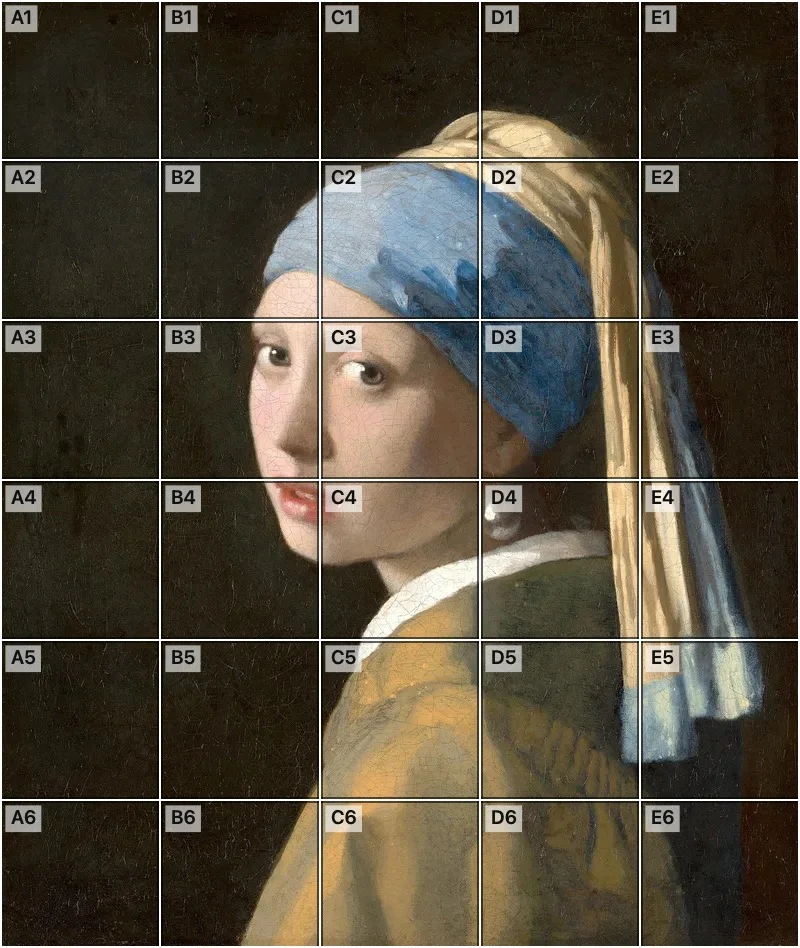 Add grid to photoAdd a grid to any photo in your browser, with no sign-up and no watermark. Get a numbered grid or a plain grid overlay, then save it or print it at true size.
- Ar TracingInstead of ar tracing with a phone stand, put a numbered grid on your own photo, then save or print it and copy it square by square. Free, no sign-up.
 Aspect Ratio CalculatorUse this aspect ratio calculator to turn a width and height into a ratio like 16:9. You also get the decimal and a resize that keeps the shape.
- Atmospheric PerspectiveAdd a numbered grid to a photo and compare near and far squares to see atmospheric perspective: lighter values, softer color. Free, in your browser.
- Bargue DrawingPractice Bargue drawing from your own photo: add a numbered grid with 5, 8 or 12 squares across, then save it or print a gridded sheet and an empty one.