How do I use a paint by number generator on my own photo?
To use a paint by number generator on your own photo, choose the picture. The numbered template appears on the same page, with a color chip under it for each number. Pick 8 or 12 colors to set how detailed the shapes are. Save the template as a PNG, print it, and paint each shape with the color that carries its number.
Open the paint by number generator, choose a photo, and the numbered template appears right away with a color chip for each number. Start with 12 colors, or drop to 8 for a simpler sheet. Download the result as a PNG and print it at home.
How to make a paint by number from a photo
Choose a photo
Press “Choose a photo” and select the picture you want to paint.
Pick the number of colors
Start with 12 colors, or press 8 colors for fewer and larger shapes. Open “More settings” to set from 4 to 12 colors free, or up to 24 with Pro, and adjust smoothness.
Check the numbers and chips
Switch between the numbers view and the colors view. Compare the color chips under the picture with the shapes to see how the finished painting will look.
Download and print
Press “Download PNG” to save the template. Print it on paper or canvas-weight stock, then paint each numbered shape with the matching color chip.
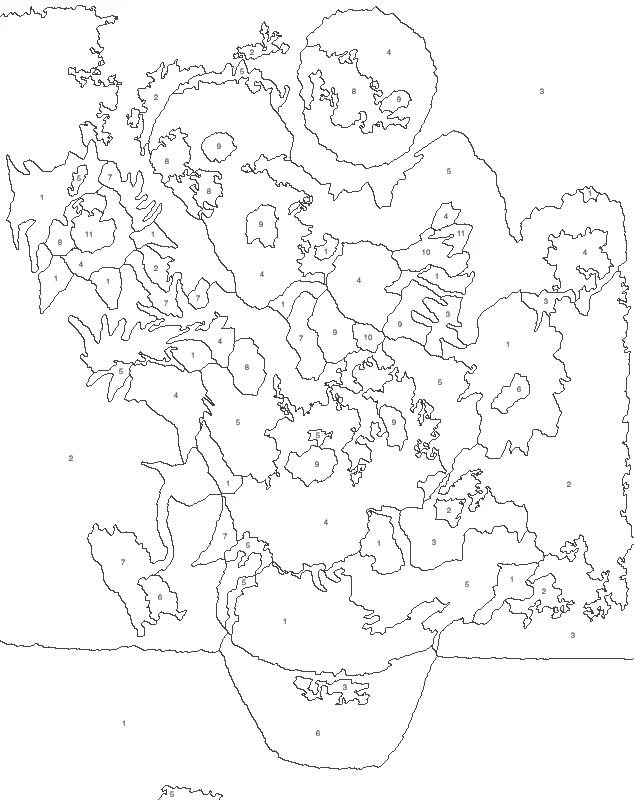
Sunflowers with 12 colors: each shape carries the number of its paint.
Pick a photo that will paint well
Choose a picture you would be happy to look at for several evenings. A pet facing the camera, a single flower, a boat on calm water and a house against the sky all break into clear, readable shapes. A crowded street scene or a close-up of grass breaks into hundreds of tiny regions, and every one of them needs its own brushstroke.
Look at the light before you choose. A photo taken in soft daylight has gentle shadows and smooth color changes, which gives larger shapes. Harsh midday sun and flash photos add hard-edged patches that turn into many small shapes. If you have several pictures of the same subject, choose the one with the plainest background.
Think about how much of the frame the subject fills. If it fills most of the picture, the shapes on the face, the petals or the roof will be big enough to paint comfortably. A small subject in a large landscape leaves you painting a great deal of sky and grass for little payoff.
Match the number of colors to who is painting
The right color count depends on the painter more than on the photo.
A child or a first-time painter
Choose 8 colors. There are fewer paints to open, fewer numbers to hunt for, and larger shapes that forgive a shaky brush. A short sheet that gets finished keeps young painters interested to the end.
Someone who has painted before
Twelve colors is the natural middle. Faces and skies keep their soft changes of tone, and the sheet still fits in an evening or two. For a richer result, Pro raises the count to 16, 20 or 24 colors. Raise it one step at a time and look at the color view each time.
A slow, detailed project
For a large portrait or a wedding picture, 16 to 24 colors (with Pro) give subtler skin tones and shadows. Expect smaller shapes and a longer job, and choose a photo with a large, simple subject so the detail lands where it matters.
Get your paints and brushes ready first
Print the template, then lay out the color chips beside it before you open any paint. Mix each color to match its chip. Write its number on a small piece of tape or on the lid of the pot. Mixing everything in advance means you never stop in the middle of a shape to hunt for a shade.
Use at least two brush sizes: a flat or round brush for large areas, and a fine pointed one for small shapes and edges. Keep a jar of clean water and a paper towel beside you. Wipe the brush every time you change color so the shades stay true.
If you plan to paint on canvas or heavy paper, test your first color in a corner of a spare piece. Thin acrylic can let the printed numbers show through pale colors, so a second coat may be needed.
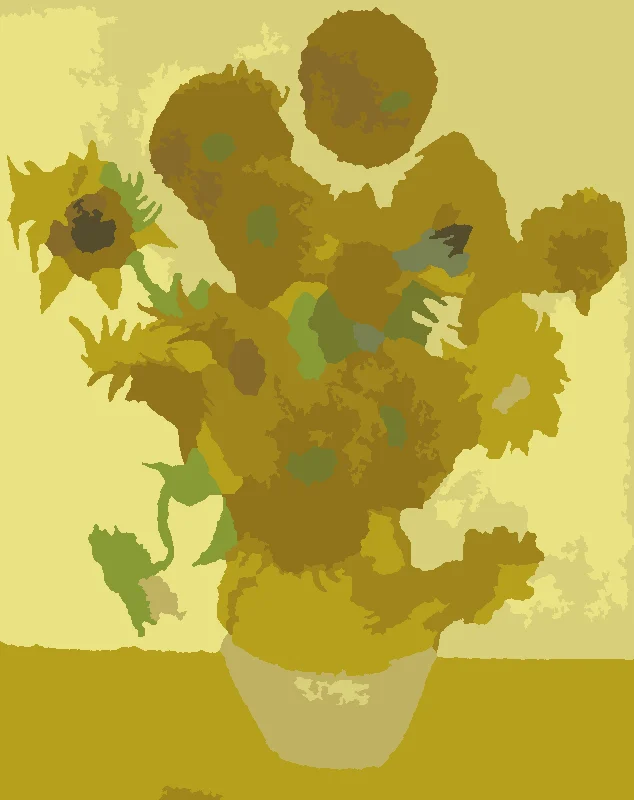
The same sheet in the colors view.
Paint in an order that keeps the sheet clean
Start with the largest areas, usually the sky, the background or a wall, and work toward the small shapes. Large areas set the overall tone and dry while you work on something else.
Paint one number at a time across the whole sheet rather than moving from shape to shape. A single color gets used up in one pass, the brush is washed once, and neighboring shapes of the same color blend together naturally.
Begin on the side away from your painting hand, so your palm never rests on wet paint. Where a pale shape touches a dark one, paint the pale one first and let it dry. Pale paint laid over a dark edge needs extra coats, while a dark color goes over a dry pale edge in one steady stroke. Leave the smallest details for the end.
Ideas for what to do with the sheet
- Make a gift from a photo the recipient already loves: a grandparent’s garden, a childhood home or a favorite dog. Print it, wrap the sheet with a set of paints, and the painting becomes the present.
- Run a table at a family gathering where each person gets the same template and a different set of shades. The finished pictures look alike in shape and different in mood.
- Use a classroom photo, such as a school building or a local landmark. Each student paints a part of the same scene, and the pieces go up together as one wall display.
- Make a quiet evening project for yourself from a trip photo of a place you want to remember.
- Print the same template twice. Paint one by the numbers, and use the other for experimenting with your own colors.
Start with the largest shapes and work toward the small ones.
Read the color view before you commit
Switch to the colors view before printing and look at it from arm’s length. If the face looks flat or the sky has visible bands, change the smoothness or the number of colors. The painting will not fix what the template gets wrong.
If two chips look almost the same, the template does not need both. Lower the color count by one or two steps and compare again. A sheet with clearly different chips is easier to paint, and there is less chance of putting a shade in the wrong shape.
FAQ
Is there a free paint by number generator, and do I need an account?
Yes, it is free and needs no account or app. You can use up to 12 colors and download a PNG at 1500 pixels on its long side. Any phone, tablet or computer with a browser can run it.
Is my photo uploaded anywhere?
No. Your photo is read and processed in your browser and never leaves your device. The numbered template is made on the page you are looking at, so you can use private family pictures without sending them anywhere.
How many colors should I choose?
Twelve is a good starting point, and 8 gives a simpler sheet with larger shapes. Fewer colors are quicker and easier to paint. More colors give more detail but mean more small shapes. Under “More settings” you can pick from 4 to 12 free, or up to 24 with Pro.
Why is my sheet full of tiny shapes?
The photo probably has a lot of fine detail. Busy pictures with leaves, crowds or patterned fabric break into many small shapes. Try 8 colors, or change the smoothness under “More settings”, and compare the result in the colors view. A simpler photo with one clear subject also helps.
What type of photo works best?
A sharp photo with one clear subject and good light works best. Strong contrast between the subject and the background gives clean, readable shapes. Dark, blurry or cluttered pictures turn into many small regions that take longer to paint.
How do I keep the finished sheet?
Press “Download PNG” to save the template, then print the file from your device. With Pro you can also get a three-page PDF on Letter or A4. It holds the numbered sheet at 300 dots per inch, the color key and a picture of the finished look.
Does it work on a phone?
Yes. On a phone, open this page, press “Choose a photo” and select a shot from your camera roll.
Can I switch between the numbers and the colors?
Yes. The “Show it in color” button switches the view between the numbered shapes and the colors. You see how the finished picture will look before you print. The color chips under the picture list each number with its color.
Updated
Related tools
- 10x10 gridPrint a blank 10x10 grid with 100 squares in three sizes. Add numbers 1 to 100, then print the sheet or save it as a clear PNG.
 4 Quadrant Graph PaperPrint free 4 quadrant graph paper with bold x and y axes, numbered both ways from 0. Pick square size and paper, then save as PDF, PNG or JPG.
- 8x8 gridPrint a free 8x8 grid of 64 squares in your browser. Pick Small, Medium or Large squares, add letters and numbers, then print or save a PNG.
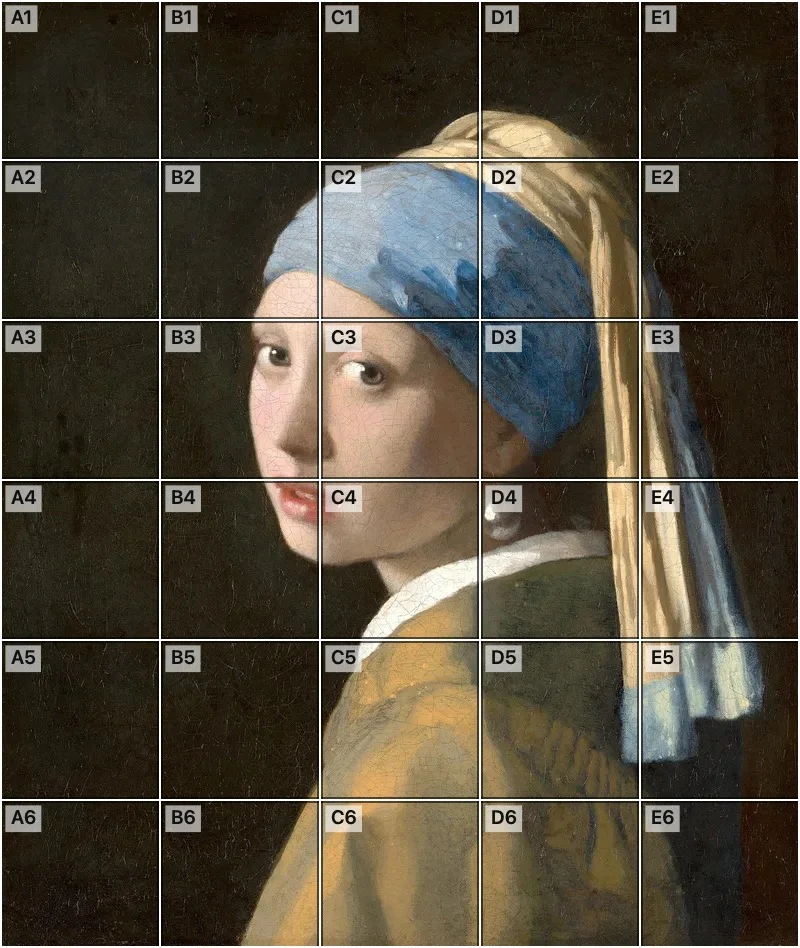 Add grid to photoAdd a grid to any photo in your browser, with no sign-up and no watermark. Get a numbered grid or a plain grid overlay, then save it or print it at true size.
- Ar TracingInstead of ar tracing with a phone stand, put a numbered grid on your own photo, then save or print it and copy it square by square. Free, no sign-up.
 Aspect Ratio CalculatorUse this aspect ratio calculator to turn a width and height into a ratio like 16:9. You also get the decimal and a resize that keeps the shape.
- Atmospheric PerspectiveAdd a numbered grid to a photo and compare near and far squares to see atmospheric perspective: lighter values, softer color. Free, in your browser.
- Bargue DrawingPractice Bargue drawing from your own photo: add a numbered grid with 5, 8 or 12 squares across, then save it or print a gridded sheet and an empty one.