How do I work out the golden ratio with a golden ratio calculator?
To work out the golden ratio, type one length into this golden ratio calculator. It returns the whole, the longer part and the shorter part. Enter 100 as the whole and you get 61.8 and 38.2. The next size up and down are listed too. For a canvas, type a width and height to get four golden lines, measured from the left and top edges.
Whole: 100
Longer part: 61.8
Shorter part: 38.2
Next size up: 161.8. Next size down: 23.61.
Golden lines on your canvas
Upright lines: 6.11 and 9.89 from the left edge.
Level lines: 7.64 and 12.36 from the top edge.
To see these lines on a photo, use the golden ratio grid.
A golden ratio calculator divides a length by about 1.618 to find the longer part. It then divides that part by 1.618 again to find the shorter one. For a whole of 100, the parts are 61.8 and 38.2. Type the length you know and the other two appear.
How to use the golden ratio calculator
Say which length you know
Pick whole length, longer part or shorter part, depending on the measurement you already have in hand, so the calculator knows where to start from.
Type the number
Enter the length in pixels, inches, centimeters or any other unit you like. Type the number exactly as you measured it, and keep to one unit for every figure you enter.
Read the three lengths
The whole, the longer part and the shorter part appear together, along with the next size up and the next size down. Use them for layouts, frames or spacing.
Add a canvas width and height
Under “Golden lines on your canvas”, type both sides in one unit. You get two upright lines and two level lines, measured from the left and top edges.
Split a layout width into two parts
Measure the width of the space you are filling, whether a poster, a slide or a page column, and enter it as the whole length. The longer part is the width for the main block, such as a picture. The shorter part is the width left for text or a side note. Keep the unit you measured in, and the two parts add back up to the whole. Sketch both blocks on paper first so you know which side gets the longer part.
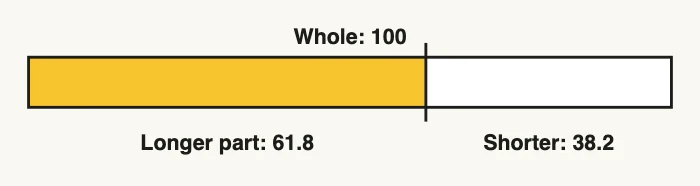
A whole of 100: the longer part is 61.8, the shorter 38.2.
Work backward from a width you cannot change
Sometimes one size is fixed: a photo already cropped, a frame you already own, a shelf that has to stay where it is. Choose “longer part” or “shorter part” to match that measurement, type it, and read off the whole. Compare the whole with the space you have. If it is too large or too small, try the next size up or the next size down. Both keep the same proportion.
Mark golden lines on a canvas before you start
Measure the face of the canvas or the sheet of paper, width and height, in one unit. Type both into the canvas section. Along the top edge, make a small pencil mark at each of the two upright distances, measured from the left edge. Down the left edge, mark the two level distances, measured from the top. Join opposite marks with a light ruler line that you can erase later.
The four lines cross at four points. Those crossings are good places for an eye in a portrait, the edge of a horizon, or the brightest patch of a still life. You do not have to put everything on a line. Placing the main subject near one crossing is usually enough to give the picture a settled balance.
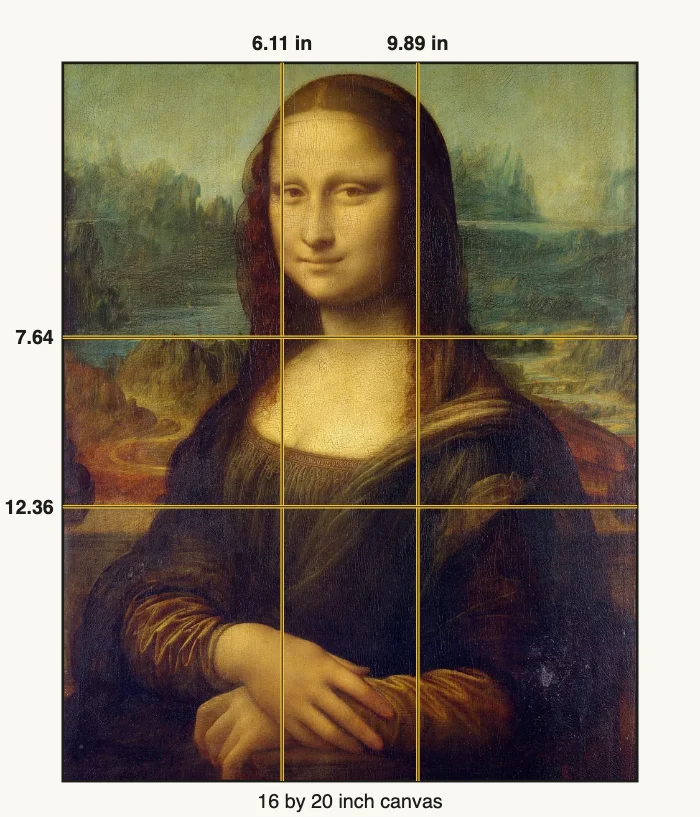
A 16 by 20 inch canvas and its four golden lines.
Use it as a golden cut calculator or a divine ratio calculator
The same ratio goes by several names. Luca Pacioli called it the divine proportion, and Leonardo called it the golden section. Some people also call the split of a length into a longer and a shorter part the golden cut. A divine ratio calculator and a golden cut calculator are both this tool. Type one length, and you get the whole, the longer part and the shorter part, with the longer part about 1.618 times the shorter.
Measure carefully before you type
Measure twice, always from the same edge. If the width is in inches, give the height in inches too, because mixing units gives lines in the wrong places. When the results come back, round them to the nearest mark on your ruler. Nobody notices a golden line that is a hair off. A rounded figure is far easier to mark by hand than a long string of digits.
Check a design you already have
Say a page has a wide content column and a narrower sidebar, and you wonder whether they sit near the golden proportion. Type the wider width as the longer part. Compare the shorter part on screen with your sidebar. If the two are close, leave the layout alone. If the sidebar is far off, the shown figure tells you what width would bring it into line. Then check the other pair, the whole against the longer part, the same way.
Set sizes for text and spacing
A type scale or a spacing scale can start from one size you trust. Enter your body text size as the shorter part, and the longer part gives a heading size in the same proportion. Enter it as the longer part instead, and you get a smaller size for captions or notes. The next size up and the next size down give further steps for a whole scale. Pixels, points or any other unit works, as long as you stay with one. Round to sizes your software lets you set.
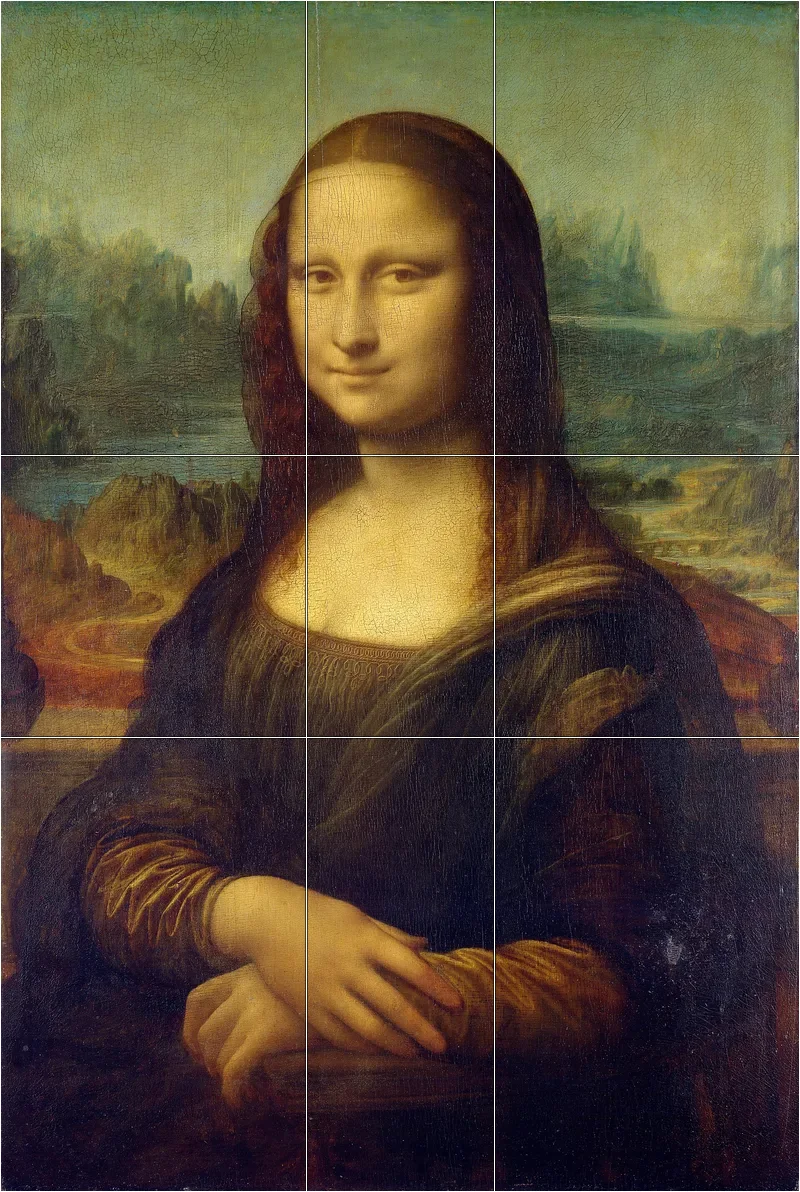
The same lines on a photo, from the golden ratio grid page.
Use the numbers to learn the idea
Students can work one example by hand, then compare. Take a whole of 100, divide by 1.618, and the longer part comes out near 61.8. Subtract it from 100 and the shorter part is 38.2. Divide 61.8 by 1.618 and you land on 38.2 again. Checking your own arithmetic against the calculator shows quickly whether a slip crept into a step. It also makes the idea easier to remember than a formula alone.
Carry the lines to a photo or a drawing
When the numbers are for a picture rather than a blank canvas, open the golden ratio grid. Choose the photo and look at where the subject falls against the lines. That grid draws its straight lines 38.2% and 61.8% of the way along each side. To redraw the picture on a larger surface, use the canvas figures from this page. They tell you where to mark the same lines on the real surface.
FAQ
How do I calculate the golden ratio?
Divide the whole length by about 1.618 to get the longer part, then divide the longer part by 1.618 to get the shorter part. The calculator does both steps for you. A whole of 100 gives 61.8 and 38.2, and the two parts add back up to the whole.
Can I enter one number and get its golden proportions?
Yes. Choose whether your number is the whole, the longer part or the shorter part, then type it. The other two lengths appear at once, together with the next size up and the next size down, in the same unit you typed.
How do I check whether two measurements are in the golden ratio?
Type the larger measurement as the longer part and compare the shorter part shown with your own smaller measurement. If they nearly match, the two are in the golden ratio. You can also divide the longer by the shorter and see whether the result is close to 1.618.
Is 60/30/10 the golden ratio?
No. The golden ratio splits one length into two parts, about 61.8 and 38.2 when the whole is 100. Use the calculator when you need the two golden parts of a single length.
Where do the golden lines fall on my canvas?
Each pair sits 38.2% and 61.8% of the way across the canvas: upright lines measured from the left edge, level lines from the top edge. A 16 by 20 canvas has upright lines at 6.11 and 9.89 and level lines at 7.64 and 12.36.
Which unit should I use?
Any unit works, including pixels, inches and centimeters. Use the same unit for every number you type, and the results come back in that unit. For a canvas, measure width and height with the same ruler.
Is there a golden ratio generator that draws the lines on a photo?
Yes. The golden ratio grid page draws them straight onto any photo you choose. The grid is straight lines only, with no spiral, so you can judge where your subject sits.
Updated
Related tools
- 10x10 gridPrint a blank 10x10 grid with 100 squares in three sizes. Add numbers 1 to 100, then print the sheet or save it as a clear PNG.
 4 Quadrant Graph PaperPrint free 4 quadrant graph paper with bold x and y axes, numbered both ways from 0. Pick square size and paper, then save as PDF, PNG or JPG.
- 8x8 gridPrint a free 8x8 grid of 64 squares in your browser. Pick Small, Medium or Large squares, add letters and numbers, then print or save a PNG.
 Add grid to photoAdd a grid to any photo in your browser, with no sign-up and no watermark. Get a numbered grid or a plain grid overlay, then save it or print it at true size.
- Ar TracingInstead of ar tracing with a phone stand, put a numbered grid on your own photo, then save or print it and copy it square by square. Free, no sign-up.
 Aspect Ratio CalculatorUse this aspect ratio calculator to turn a width and height into a ratio like 16:9. You also get the decimal and a resize that keeps the shape.
- Atmospheric PerspectiveAdd a numbered grid to a photo and compare near and far squares to see atmospheric perspective: lighter values, softer color. Free, in your browser.
- Bargue DrawingPractice Bargue drawing from your own photo: add a numbered grid with 5, 8 or 12 squares across, then save it or print a gridded sheet and an empty one.