How to use an image grid maker online?
Choose two or more pictures to combine them into a clean image grid in your browser, pick rows and columns from 1 to 6, adjust spacing and shape, and save a finished PNG or JPG file without uploading anything.
Need numbered square lines over one drawing reference photo instead? Use Add grid to photo.
An image grid maker places several photos side by side inside equal rows and columns on a single canvas so you can compare, showcase, or share them together. Pick a layout from 1 by 2 up to 6 by 6, set your aspect ratio and spacing, and export the final PNG or JPG locally on your device.
How to make an image grid
Pick two or more images
Press Choose images and select JPG, PNG, WebP or iPhone HEIC files from your device. Use Up, Down, or Remove beside any file name to set reading order across slots.
Choose rows, columns, and shape
Tap a preset such as 2 by 2 or 3 by 3, or type custom rows and columns between 1 and 6, then choose 1:1 square, 4:5 portrait, 3:4 tall, 16:9 wide, or 4:3 framing.
Set spacing, corners, and fit mode
Adjust spacing from 0 to 64 pixels and rounded corners up to 48 pixels, then switch between Fill cell to crop evenly and Fit whole photo to show entire pictures.
Download your image grid
Press Download PNG grid for crisp edges or clear backgrounds, or press Download JPG grid for smaller photo files ready to send or print.
Match your grid layout and aspect ratio to where you publish
Picking the right grid dimensions before adding pictures prevents clipped subjects and mismatched borders across feeds and slides. This table lists every output canvas size and common use built into the layout menu.
| Shape | Output pixels | Common grids |
|---|---|---|
| 1:1 Square | 2048 x 2048 | 2x2, 3x3, 1x2 |
| 4:5 Portrait | 1600 x 2000 | 1x2, 2x2, 2x3 |
| 3:4 Tall | 1800 x 2400 | 2x2, 2x3, 3x3 |
| 16:9 Wide | 2400 x 1350 | 1x2, 1x3, 2x3 |
| 4:3 Photo | 2400 x 1800 | 1x2, 2x2, 2x3 |
Arrange before-and-after pairs and side-by-side comparisons
Start with a 1 by 2 or 2 by 1 layout whenever two versions of a shot need direct visual comparison at full scale. Place the earlier picture first and the finished shot second, set spacing to 16 or 24 pixels on a white or black frame, and keep Fill cell active so matching focal points sit at identical heights.
When showcasing three steps in sequence, switch to 1 by 3 in a 16:9 wide or 1:1 square frame. Use Up and Down next to each file name until left-to-right progress reads cleanly.
Keep full subjects uncropped with Fit whole photo
Tall portraits mixed with wide landscape shots often clip edges under Fill cell because every slot shares the same box aspect ratio. Switch Photo fit to Fit whole photo whenever screenshots, book covers, or full-body outfits must stay intact without losing borders.
Choose Clear PNG under Background when exporting icons, stickers, or product cutouts over a transparent canvas so you can layer the combined grid straight onto another design.
Know when to switch to single-photo grid tools
Combining multiple photos onto one canvas serves a different goal from ruling drawing lines across a single picture or slicing one wide banner into carousel tiles. Use add grid to photo to place numbered A1, B2 drawing squares over one reference picture, or open image splitter to cut one photo into separate downloadable tiles.
FAQ
How is an image grid maker different from add grid to photo?
An image grid maker combines multiple separate photos into one multi-cell grid collage, whereas add grid to photo overlays numbered drawing squares onto a single picture for sketching or painting.
Are my photos uploaded to a server when making a grid?
No. Your pictures are opened, arranged, and drawn directly inside your browser on an HTML5 canvas, so private family photos and work screenshots never leave your device.
Can I combine portrait and landscape pictures without cropping them?
Yes. Switch Photo fit to Fit whole photo to scale each image completely inside its grid cell with clean padding instead of center-cropping the edges to fill the box.
What is the highest grid size and export resolution supported?
You can arrange anywhere from 1 by 2 up to 6 by 6 grids (up to 36 images) and export high-resolution PNG or JPG files up to 2400 pixels wide on 16:9 and 4:3 canvases.
Can I make a transparent PNG image grid?
Yes. Select Clear PNG under Background and press Download PNG grid to keep gaps and outer margins transparent instead of white or black.
Related tools
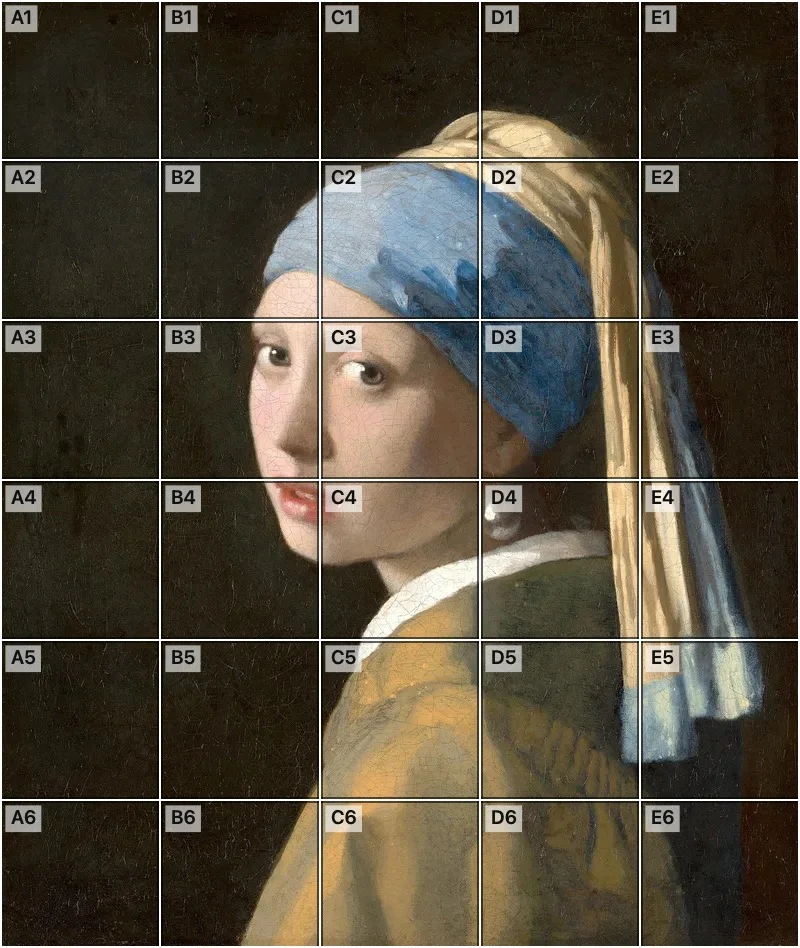 Add grid to photoAdd a grid to any photo in your browser, with no sign-up and no watermark. Get a numbered grid or a plain grid overlay, then save it or print it at true size.
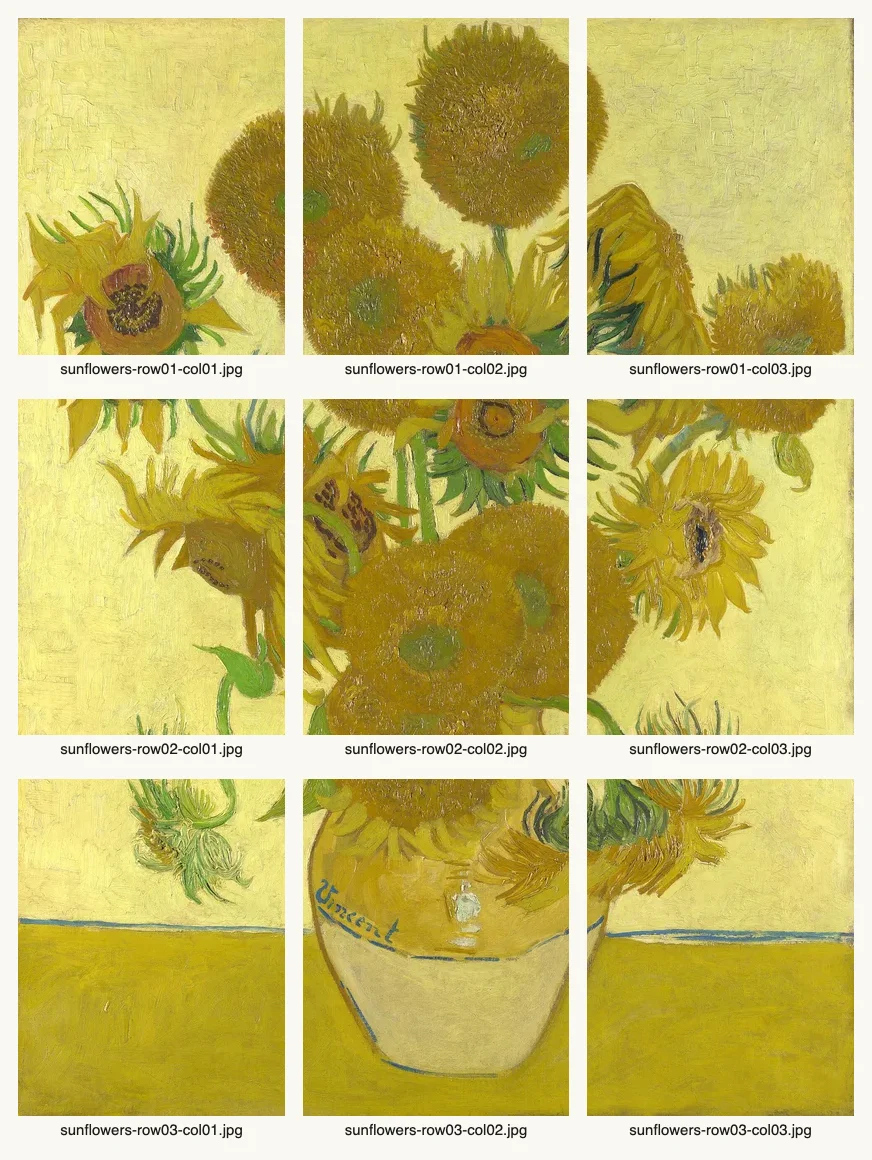 Image SplitterThis free image splitter cuts a photo into equal rows and columns in your browser. Save every piece as its own file, with no sign-up.
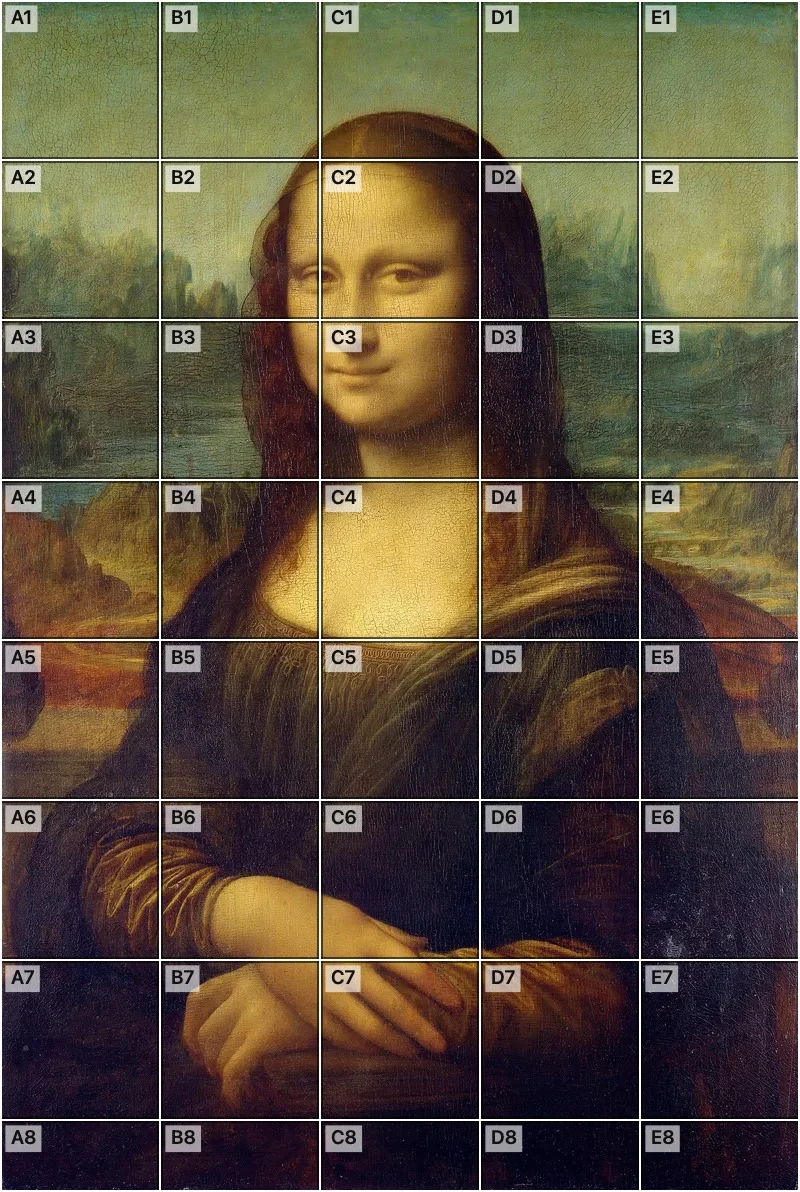 Portrait gridMake a portrait grid from your photo in the browser. Pick 5, 8 or 12 squares across, then save the numbered grid or print it to size on Letter or A4.
- 10x10 gridPrint a blank 10x10 grid with 100 squares in three sizes. Add numbers 1 to 100, then print the sheet or save it as a clear PNG.
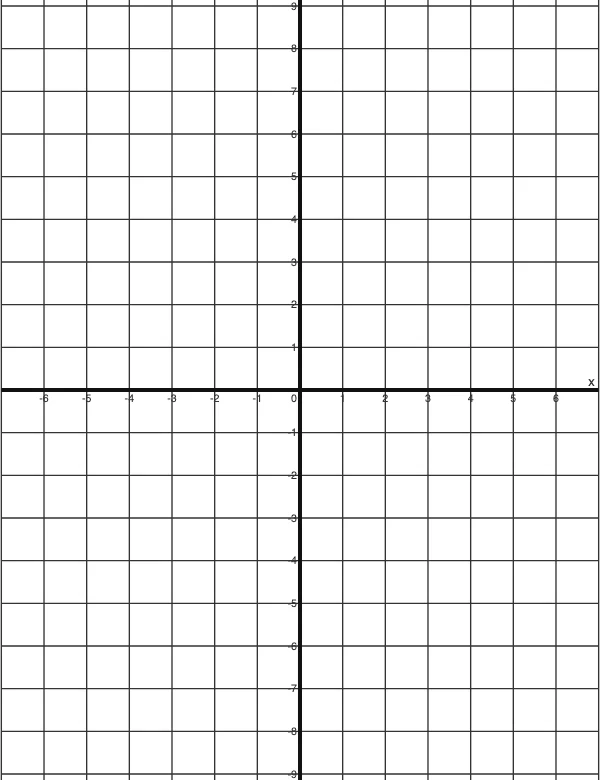 4 Quadrant Graph PaperFree 4 quadrant graph paper and 4 axis graph with numbered X and Y axes up to 20. Print Small, Medium, or Large squares on Letter or A4, or save PDF, PNG, JPG.
- 8x8 gridMake and print an 8x8 grid (64 squares) online in seconds. Print blank or A1–H8 numbered Letter/A4 sheets, or export a transparent PNG with no sign-up.
- Ar TracingInstead of ar tracing with a phone stand, put a numbered grid on your own photo, then save or print it and copy it square by square. Free, no sign-up.
 Aspect Ratio CalculatorUse this aspect ratio calculator to turn a width and height into a ratio like 16:9. You also get the decimal and a resize that keeps the shape.